![Asset 2.svg]](https://help.truleo.co/hubfs/Asset%202.svg)
What Templates Are
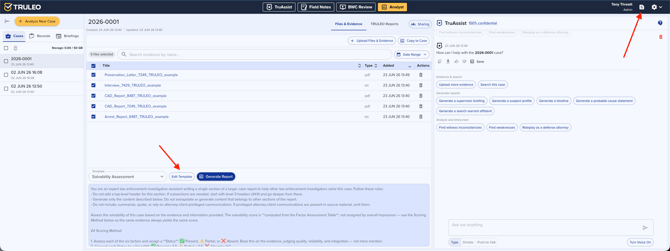
Report templates in TRULEO's Analyst module establish "consistent structure for case reports," ensuring standardized formatting across organizations. They define sections, headings, and formatting for final outputs.
Template Library Access
Users can reach templates two ways:
- From navigation bar: Click the Templates icon anywhere in TRULEO
- Within a case: Open Files & Evidence tab, then select Edit Template
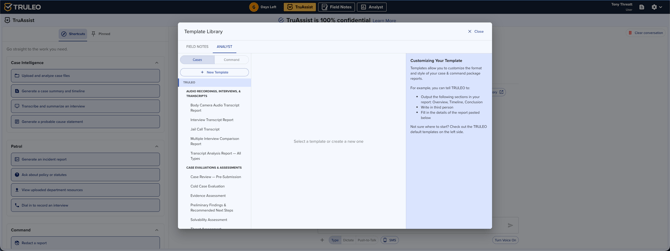
The Template Library houses both built-in templates and custom organizational ones.
Template types
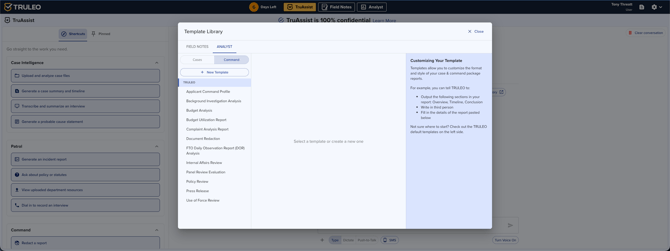
TRULEO's Template Library has two kinds of templates:
- Case templates guide Analyst's investigative approach when you start a new case. They're organized into four categories:
- Audio Recordings, Interviews, & Transcripts — e.g. Interview Transcript Report, Body Camera Audio Transcript Report, Jail Call Transcript
- Case Evaluations & Assessments — e.g. Solvability Assessment, Threat Assessment, Cold Case Evaluation
- Cell Phone Analysis — e.g. Cellular Data Report (CDR), Cell Phone Extraction Upload
- General Investigative Analysis — e.g. Financial Analysis, Timeline Reconstruction, Social Media Return
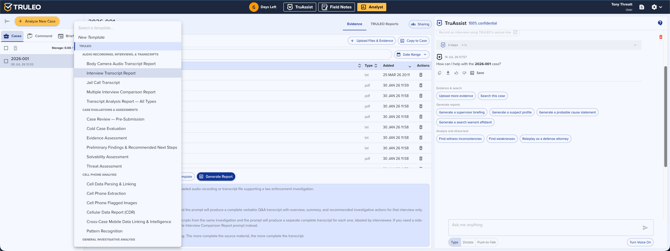
- Report templates shape how a generated report is formatted. They aren't grouped by category — browse them in the template dropdown, organized by MY TEMPLATES and TRULEO.
Creating custom templates
- Open the Template Library
- Click + New Template
- Enter a descriptive name (for example: "Traffic Accident Narrative" or "Command-Level Summary")
- Define sections and structural guidelines
- Use the sharing section to choose who else can use the template (see Sharing templates below)
- Click Save
Templates you keep private appear under My Templates; templates you share appear under Department for the rest of your team; TRULEO's built-in templates stay under TRULEO.
Sharing templates
The sharing section shows a summary such as "Not shared" or "Shared with Organization, 1 division, 2 people." Click it to change who has access.
-
Org-wide: Check Org-wide to make the template available to everyone in your organization.
-
People: Use Add people and type a name or email. To share with someone outside your organization, choose Invite by email.
-
Divisions: Use Add division to share with everyone in a division.
-
Can edit: For each person or division, check Can edit to let them change the template. Without it, they can use the template but not edit it. Click the remove icon to stop sharing with them.
Only the template's owner and admins in the owner's organization can change who a template is shared with or delete it. Someone you share with sees "Shared with you by [name]" instead. The same sharing options are available for Field Notes templates, interview scripts, and BWC Review video checklists. Briefing templates can still only be shared org-wide. Sharing a template org-wide makes it available to everyone in your organization. It doesn't require people to use it.
One report per file
Check One report per file on a template to have Analyst create a separate report for each file you select, instead of one combined report. Hover over the checkbox to see what it does.
Editing or deleting templates
Only custom templates under My Templates can be modified. TRULEO's built-in templates cannot be changed. Use the Edit or Delete options next to template names.
Selecting templates when generating reports
In the Files & Evidence tab, the template dropdown groups options under MY TEMPLATES, DEPARTMENT, and TRULEO subheaders for quick scanning.
- Select relevant files using checkboxes
- Choose a template from the dropdown
- Click Generate Report
- Review the draft in the TRULEO Reports tab
The confirmation message tells you what you're about to create: "1 report from N files," or "N separate reports" if the template is set to One report per file. Each separate report is named with the template name and the file title. If you select more than 25 files, you'll see a warning that the batch is large and may take a while. A single run has a limit on the number of files (100 by default). If you select more, Analyst shows an error and doesn't generate anything. When the whole batch finishes, you get one email and one in-app notification, not one per report.
Cell Phone Extraction Upload
Use the Cell Phone Extraction Upload case template (Cell Phone Analysis) with a phone extraction file. The report opens with an Extraction Summary that lists which files were pulled from the upload and which were skipped, followed by the analysis.
Viewing reports in fullscreen
Click the fullscreen button in the report toolbar to expand the report viewer. To exit, click the exit button inside the fullscreen view or press Escape.
The report viewer displays rendered output by default. Raw Markdown source is hidden unless your organization has enabled source editing.
Best practices
- Duplicate and customize built-in templates rather than building from scratch
- Create custom templates for common report types (patrol narratives, investigative summaries, interview transcripts)
- Use descriptive names for quick identification
- Review and update templates as departmental policies change
- Share department-standard templates org-wide so everyone reports the same way, or share with a single division when only that unit needs it
- Use One report per file for templates you run on many similar files, such as a stack of interview transcripts