![Asset 2.svg]](https://help.truleo.co/hubfs/Asset%202.svg)
Before you start
- Cell phone extraction must be enabled for your organization — contact your TRULEO representative to activate it
- You'll need physical access to the phone and the owner's consent to extract their data
- This currently supports Android phones only — see iPhone (iOS) support below
- The extraction app installs on the computer you're using to upload evidence — if your machine is locked down by IT policy, you may need to loop in IT before installing
Installing the extraction app (first time only)
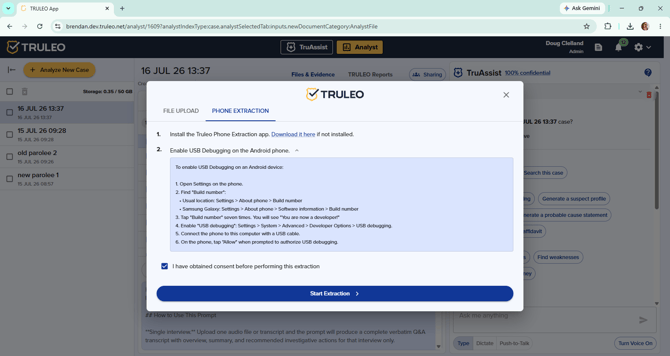
- When uploading evidence to a case, choose Phone extraction as the file source
- Download and run the installer. The app installs into your local user folder, so an administrator login usually isn't required. If your laptop is managed and won't allow the install, please contact your IT department for assistance.
- Installation takes about a minute while dependencies download in the background
Preparing the phone for extraction
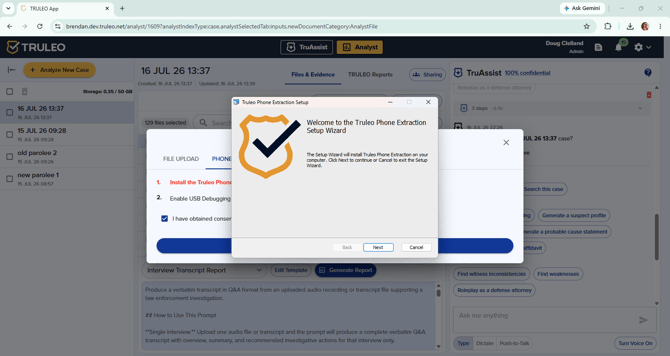
Before connecting a phone, confirm and document that you have the owner's consent to extract their data — for example, verbal consent captured on body-worn camera or a written form.
- On the Android phone, open Settings, then About phone (on Samsung phones: About phone > Software information), and find Build number
- Tap Build number seven times until the phone confirms you're now a developer
- Go to Settings > System > Advanced > Developer options and turn on USB debugging
- Connect the phone to the computer with a USB cable
- On the phone, allow the prompt to authorize USB debugging and trust the computer. If you'll extract from this phone on this computer again, check Always allow from this computer so you won't need to repeat this step
Running the extraction
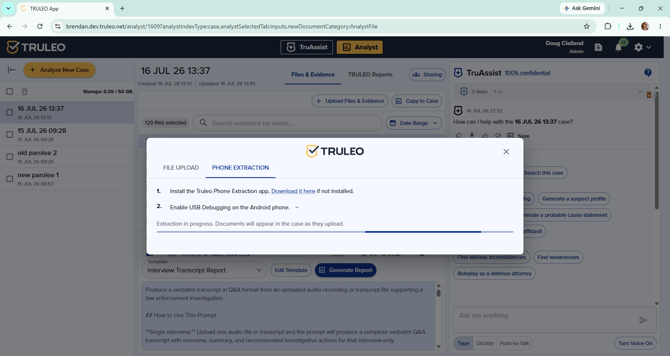
Once the phone is connected and trusted, click Start Extraction and the phone extraction application begins pulling data automatically.
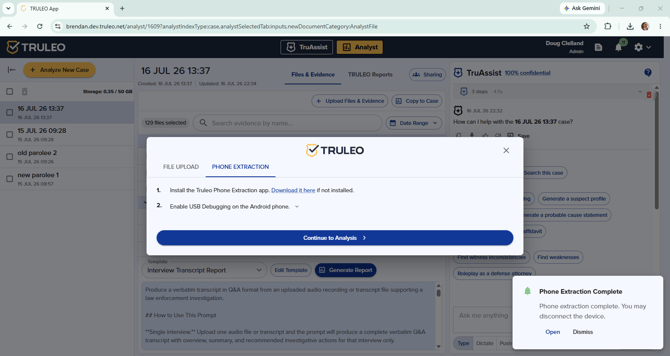
Extraction and processing will take some time to complete. You will receive a notification in the TRULEO web app when the extraction is completed and the device may be disconnected from your computer.
What gets extracted
TRULEO pulls the following from the phone:
- Call log
- Text messages (SMS)
- Calendar events
- Contacts
- App usage stats
- List of installed third-party apps
- Wi-Fi connection history
- Battery stats
- A list of the photos and videos on the device
- A list of downloaded files on the device
Photos and videos. TRULEO also pulls recent photo and video files from the phone and uploads them individually to the Analyst case, along with a manifest listing each file's size, timestamp, and GPS coordinates (when that information is available from the photo or video itself). If you extract from the same phone again for the same case, files already in the case aren't duplicated — only new files are added.
iPhone (iOS) support
Cell phone extraction currently supports Android phones only. If you connect an iPhone, the extraction tool won't detect a device and extraction can't be started.
For iPhones, upload a Cellebrite UFDR (.ufdr) through TRULEO's standard File Upload tab. See Uploading UFDR files.
Viewing the results
When processing finishes:
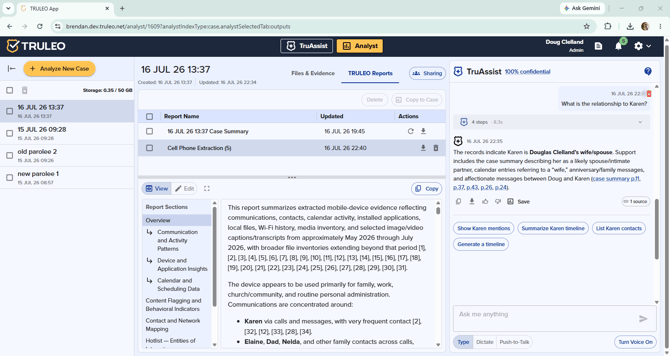
- The case summary in Analyst updates automatically
- A Cell Phone Extraction Report generates and appears under TRULEO Reports — this is your go-to summary of what was pulled from the phone
- The report includes everything that was successfully extracted — see What gets extracted above for the full list
- Use TruAssist to ask questions about the extracted documents, the same way you would with any other case file
Best practices
- Confirm and document consent before you begin — this protects the extraction as evidence
- If your department locks down installs, loop in IT ahead of time so the installer isn't blocked by security software
- Check Always allow from this computer the first time so future extractions on the same phone/machine don't require re-authorizing
- Treat the Cell Phone Extraction Report as your starting point, then use TruAssist for follow-up questions on specific messages or contacts