Exporting Reports from Analyst
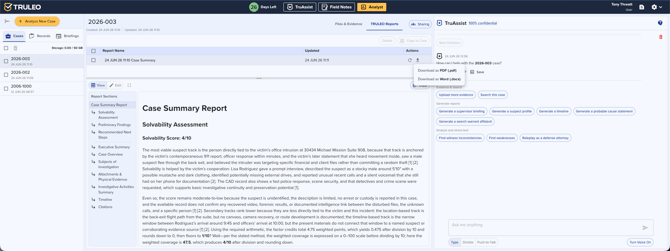
Case reports, field notes, and analyst narratives can be downloaded as PDF or DOCX files directly from within TRULEO for use in your agency's records management system
1. Overview
TRULEO Analyst supports exporting any generated report in two formats:
- PDF — a fixed-layout document, best suited for final submissions, sharing with stakeholders, or archiving.
- DOCX — an editable Word document, best suited when further formatting or editing is needed outside of TRULEO.
Export buttons are available on case reports, field notes, and Analyst narratives.
2. Exporting a Case Report from Analyst
- Open the relevant case from the left-hand Cases panel in Analyst.
- Select the report you want to export from your reports list.
- Open the report in the Enhanced Editor.
- Click the Download button in the upper-right corner of the editor.
- Select either PDF or DOCX from the dropdown.
- The file will download to your device. Save it locally or upload it into your records management system.
3. Exporting a Field Note
- Navigate to Field Notes from the top navigation bar.
- Open the field note you want to export.
- Click the Download button in the upper-right corner.
- Select PDF or DOCX.
- The file will download to your device.
4. Exporting an Analyst Narrative
Analyst narratives — summaries and outputs generated directly from the Analyst chat panel — can also be exported independently:
- With your case open in Analyst, locate the narrative in the Enhanced Editor.
- Click Download and select your preferred format.
- Save or upload the file as needed.
5. Choosing Between PDF and DOCX
| DOCX | ||
|---|---|---|
| Best for | Final submissions, archiving, sharing | Further editing outside TRULEO |
| Editable after export | No | Yes |
| Formatting preserved | Yes | Yes (may vary by Word version) |
| RMS upload compatibility | Broad | Broad |
6. Best Practices
- Review before exporting. Use the Enhanced Editor to finalize and approve the content before downloading — AI-generated content should always be reviewed for accuracy and alignment with agency policy.
- Use PDF for official submissions. PDF ensures the document looks identical for every recipient and cannot be inadvertently modified.
- Use DOCX for collaborative drafts. If a supervisor or DA needs to make edits outside TRULEO, DOCX provides the most flexibility.
- Name your files consistently. Upon download, rename files to match your agency's document naming convention before uploading to your RMS (e.g., "Case-2025-0847-Narrative.pdf").