![Asset 2.svg]](https://help.truleo.co/hubfs/Asset%202.svg)
Overview
TRULEO’s Field Notes is an AI‑assisted tool for creating law‑enforcement narratives. Instead of replaying hours of body‑worn camera footage, officers can simply speak or type their recollection while the system captures the details and ensures they follow departmental and National Incident‑Based Reporting System (NIBRS) guidelines. The AI reviews critical facts in the officer’s recollection and produces structured reports
Starting a Field Notes report
-
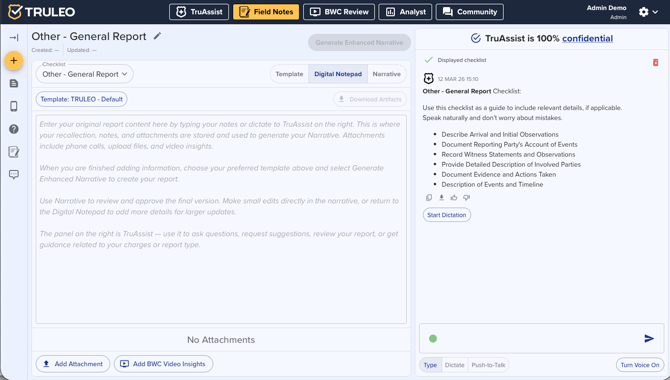
Open the incident – Select the applicable template (e.g., TRULEO – DUI) and open the Digital Notepad tab. A text box appears where you can speak or type your recollection of the event. In the DUI example, the officer began by noting when they arrived and describing the traffic accident, vehicles involved and driver behaviors.
-
Add details using prompts – TRULEO’s assistant asks guided questions (e.g., “Can you describe what you observed that led to stopping the driver?”) and records your answers in the notepad. This ensures that key facts such as time, location, involved parties and actions are captured.
-
Attach evidence – Use the attachments area to add body‑worn camera clips or other media that support your narrative. These attachments are referenced within the final report for clarity.
AI‑assisted review with TruAssist
-
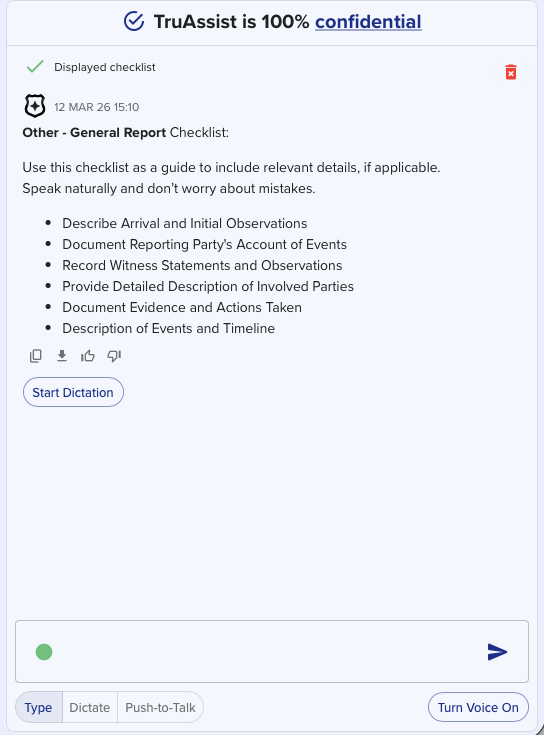
Automated checklist: Once you’ve captured your initial notes, select Review Notes. TruAssist provides an AI‑driven review that compares your narrative against NIBRS guidelines, department policy and report‑specific templates
-
Displayed checklist: In the DUI example, the right‑side panel lists standard items that should be covered, such as the reason for the initial stop, driver’s behavior upon contact, sobriety tests administered, statements made, arrest and transport details, witnesses and evidence, and charges filed. These items are displayed so officers can verify each point has been addressed.
-
Guidance message: TruAssist explains that the checklist covers key details for documenting incidents, including the reason for the stop, driver behavior, tests performed, statements, arrest, evidence and charges. Officers can use this to determine what details to add before generating the final narrative.
Identifying missing details
After reviewing notes, TruAssist highlights what’s still missing from the checklist and offers prompts to fill the gaps:
-
Reason for the initial stop – Document the specific driving behavior or vehicle observations that led to the stop
-
Driver’s behavior upon contact – Note demeanor, speech or actions when you made contact
-
Statements and demeanor – Include anything the subject said or did that is relevant
-
Arrest and transport details – Provide specifics if the individual was arrested or transported
-
Witnesses, evidence and chemical tests – List witnesses, describe evidence collected and note any chemical tests performed
-
Charges filed – Detail the specific charges related to the incident
The assistant reminds you that you can add more details or generate the enhanced narrative at any time
Generating the enhanced narrative
-
Add missing details – Before generating the report, fill in the gaps identified by the checklist. Use the Dictate or Type options to add sentences that address each missing element.
-
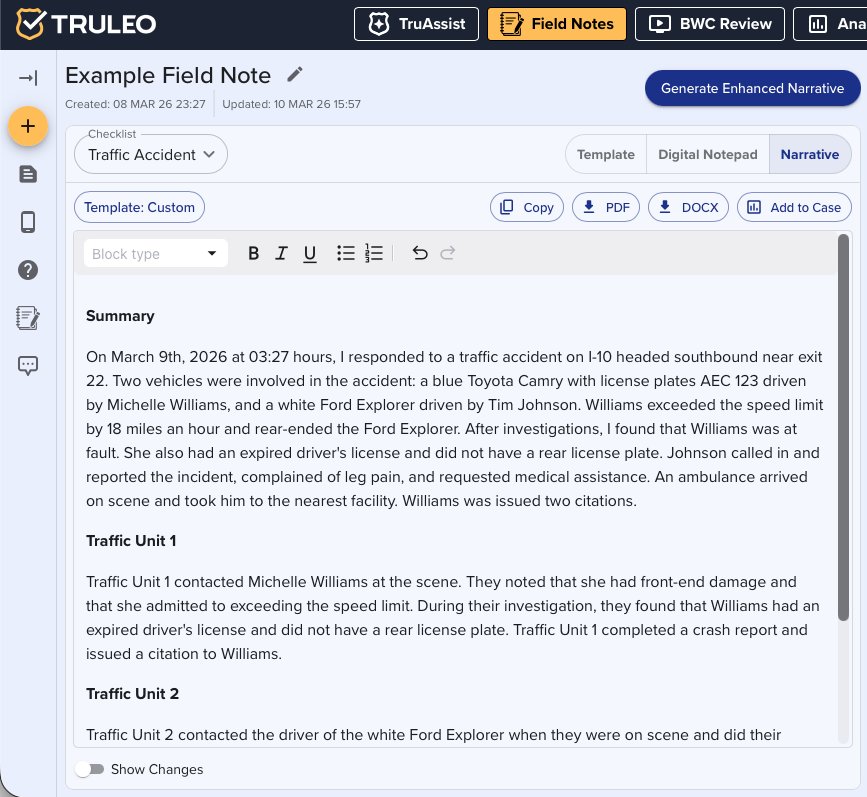
Generate enhanced narrative – Click Generate Enhanced Narrative. The AI uses your completed notes and the checklist to produce a polished narrative that is structured, consistent and ready for inclusion in official reports.
-
Review and edit – Review the AI‑generated narrative on the Narrative tab. Make any edits for clarity or style, then finalize the report.
Template Library
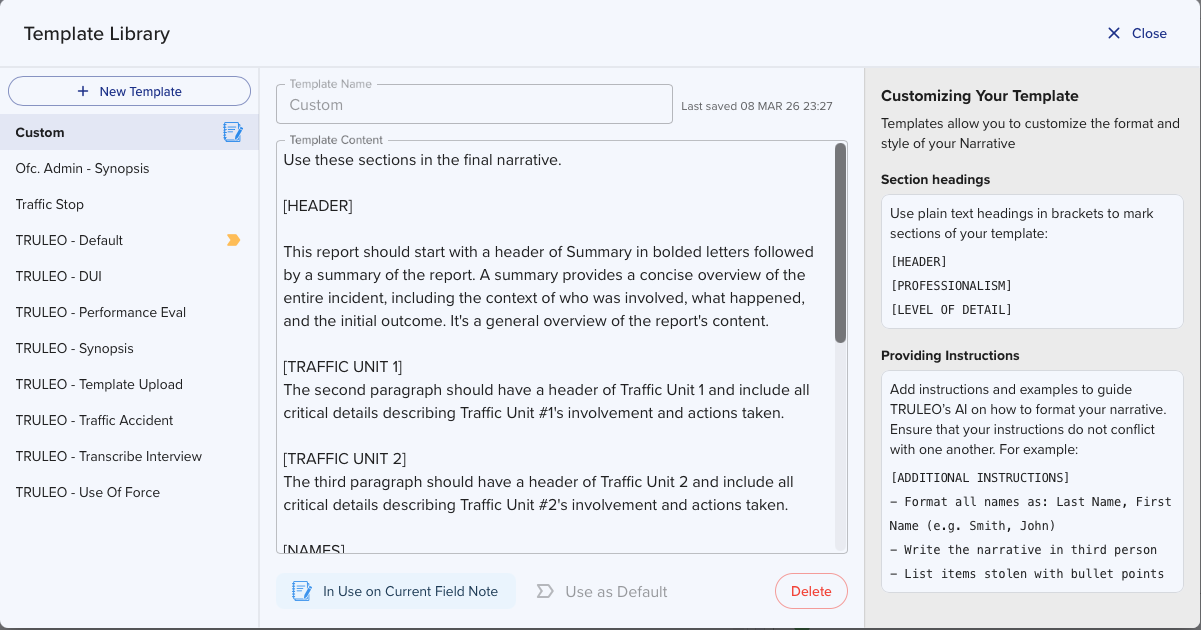
Field notes templates can be customized to fit the style and narrative needed for your case and department. There are standard Templates available in the Library, and New Templates can be created using the New Template button
Mobile Reporting
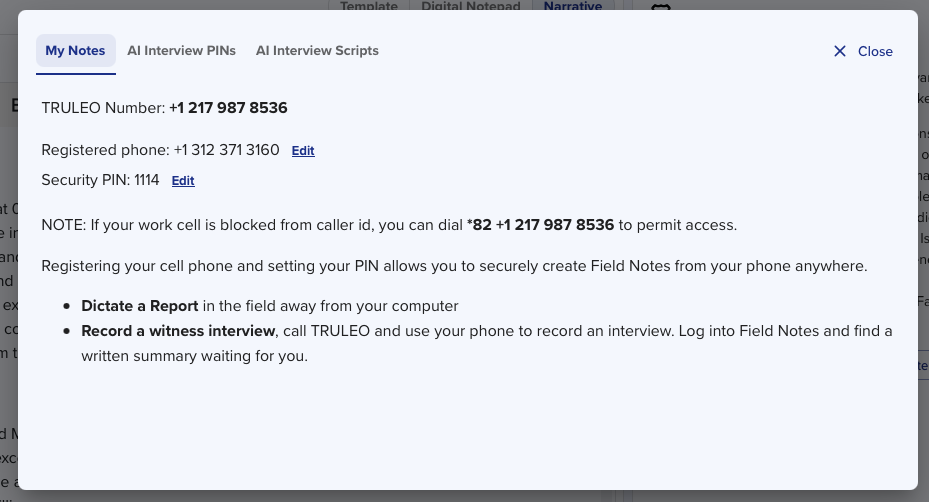
Field Notes isn’t limited to desktop use. The Mobile tab lets an officer register a cell phone and receive a security PIN. Once registered, you can dictate a report or record a witness interview by calling the TRULEO number; the system transcribes the call and adds it to the notepad.
Key takeaways
-
Guided, consistent reporting – Field Notes ensures that officers include all critical elements in their reports by providing checklists and AI prompts
-
AI review and enhancement – TruAssist compares your narrative against departmental and NIBRS guidelines and generates a well‑structured report
-
Flexible input methods – Officers can dictate or type their recollection and attach supporting evidence; the AI organizes and refines it into a polished narrative
By following the steps above, officers can produce comprehensive, consistent incident narratives with reduced administrative burden and improved compliance with reporting standards.