![Asset 2.svg]](https://help.truleo.co/hubfs/Asset%202.svg)
Starting a new case
- Open Analyst
- Click Analyze New Case in the left cases panel
- The new case stepper opens
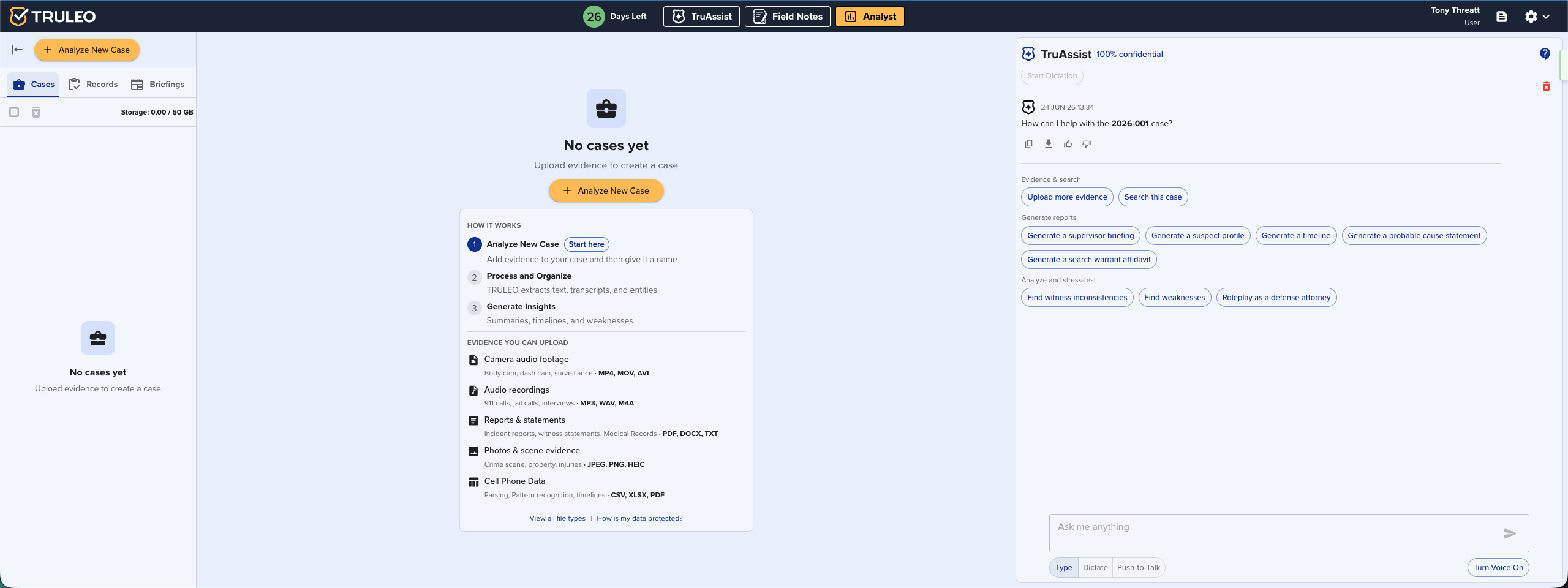
Step 1 — Get started
Review the welcome step, then continue into upload.
Step 2 — Upload files
Add the files you want to analyze:
- Drag and drop files directly onto the upload area, or
- Click Browse to select files from your computer
- Click Try with sample files to load a set of demo files and explore Analyst before uploading real case materials
To import from Evidence.com, connect your agency account first (see Importing from Evidence.com), then ask TruAssist in Analyst to import by case number.
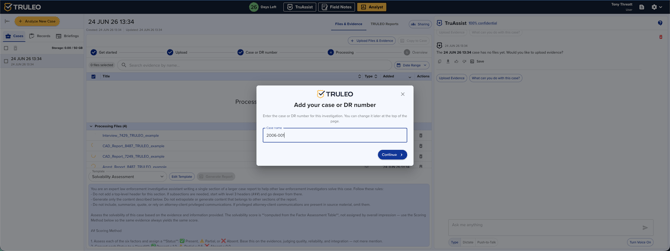
Step 3 — Case or DR number
Enter your case or DR number when prompted. Use your agency's standard naming format — RMS case number, suspect name, or incident type work well.
You can edit the case name inline at any time from the case Overview after creation.
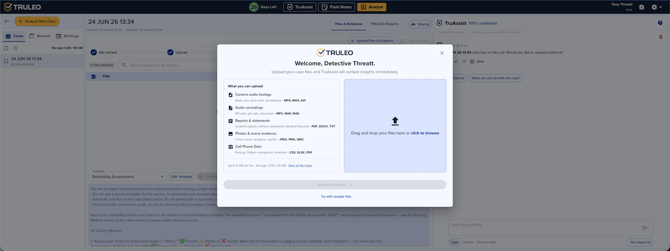
Supported file types: audio, video, documents (PDF, Word), and transcripts.
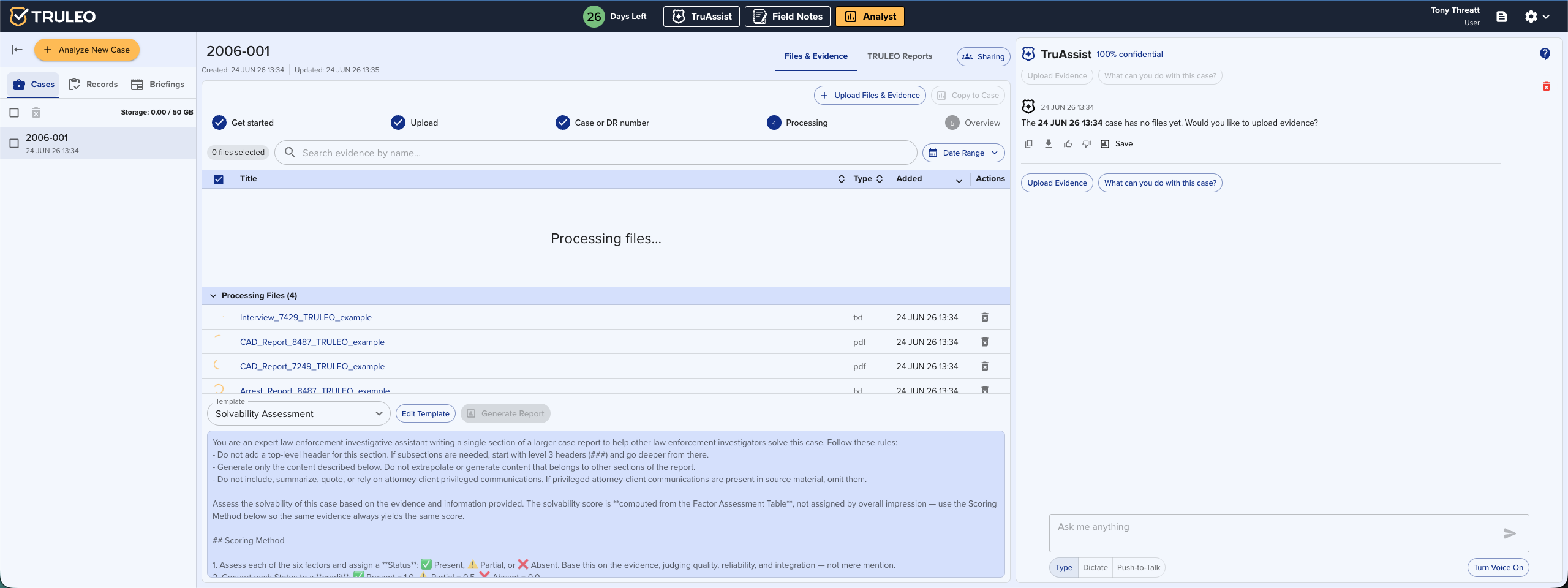
Step 4 — Processing
TRULEO processes your files — transcribing audio and video, indexing documents, and preparing the analysis. Processing time depends on the number and size of files.
Each file shows a processing status while work is in progress. You can close this step and return later — TRULEO continues processing in the background and notifies you when complete.
The Processing Files section on the case Overview is collapsible — once all files are done, it collapses automatically so it's out of the way.
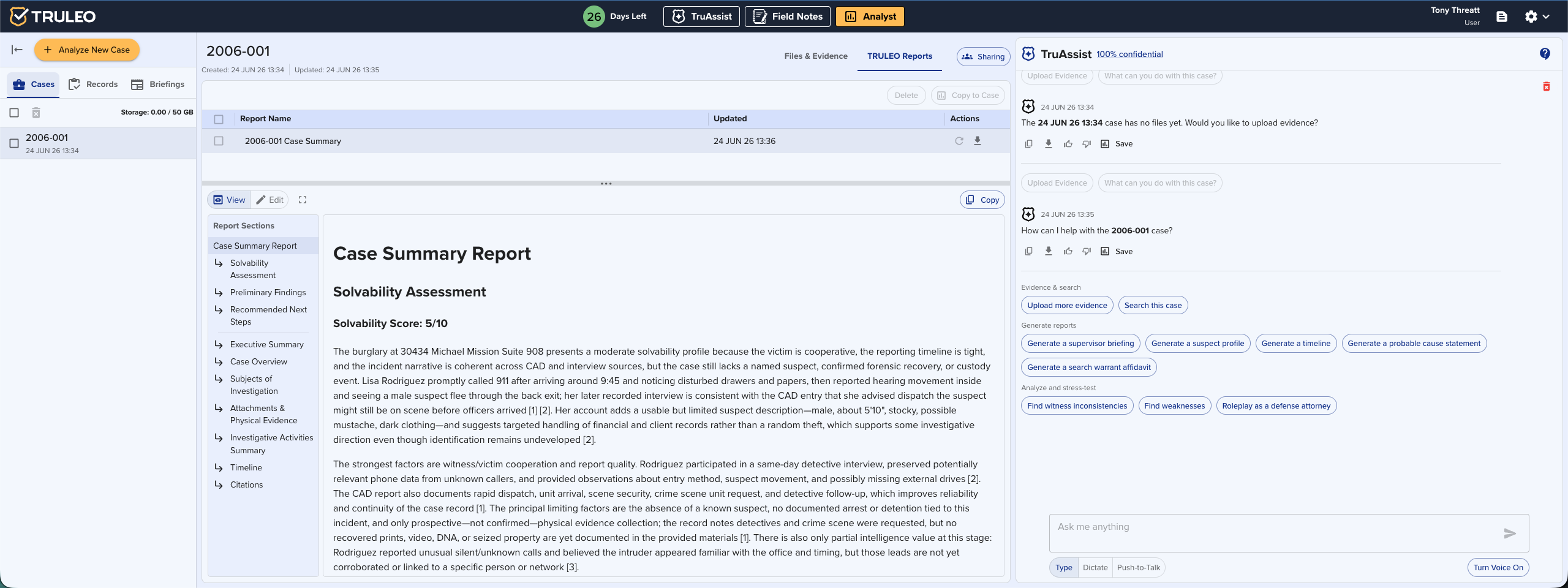
Step 5 — Case Overview
When processing is complete, you land on the case Overview. From here you can:
- View the auto-generated Solvability Assessment
- Ask TruAssist questions about the case
- Generate a report using a template from your Template Library
- Review uploaded files and transcripts
- Add more files at any time
Best practices
- Name cases consistently with your RMS case numbers from the start — it's harder to track down later
- Upload all known files before generating your first report — the more context Analyst has, the better the output
- Use Try with sample files to train new detectives on the workflow before they touch real case files