![Asset 2.svg]](https://help.truleo.co/hubfs/Asset%202.svg)
Overview
Case Import connects TRULEO to your Evidence.com (or on-prem evidence system) account. Once an admin sets up a connector, Analyst indexes your agency's Evidence.com cases on a schedule, and any user working a case in Analyst can browse those cases and pull one in with a few clicks. Files are imported in the background — you can keep working while the import runs, and TRULEO notifies you when it's done.
Importing case files into an existing case
- Open the case in Analyst and go to the Files & Evidence tab.
- Click to add files, the same way you would upload a file or run a phone extraction.
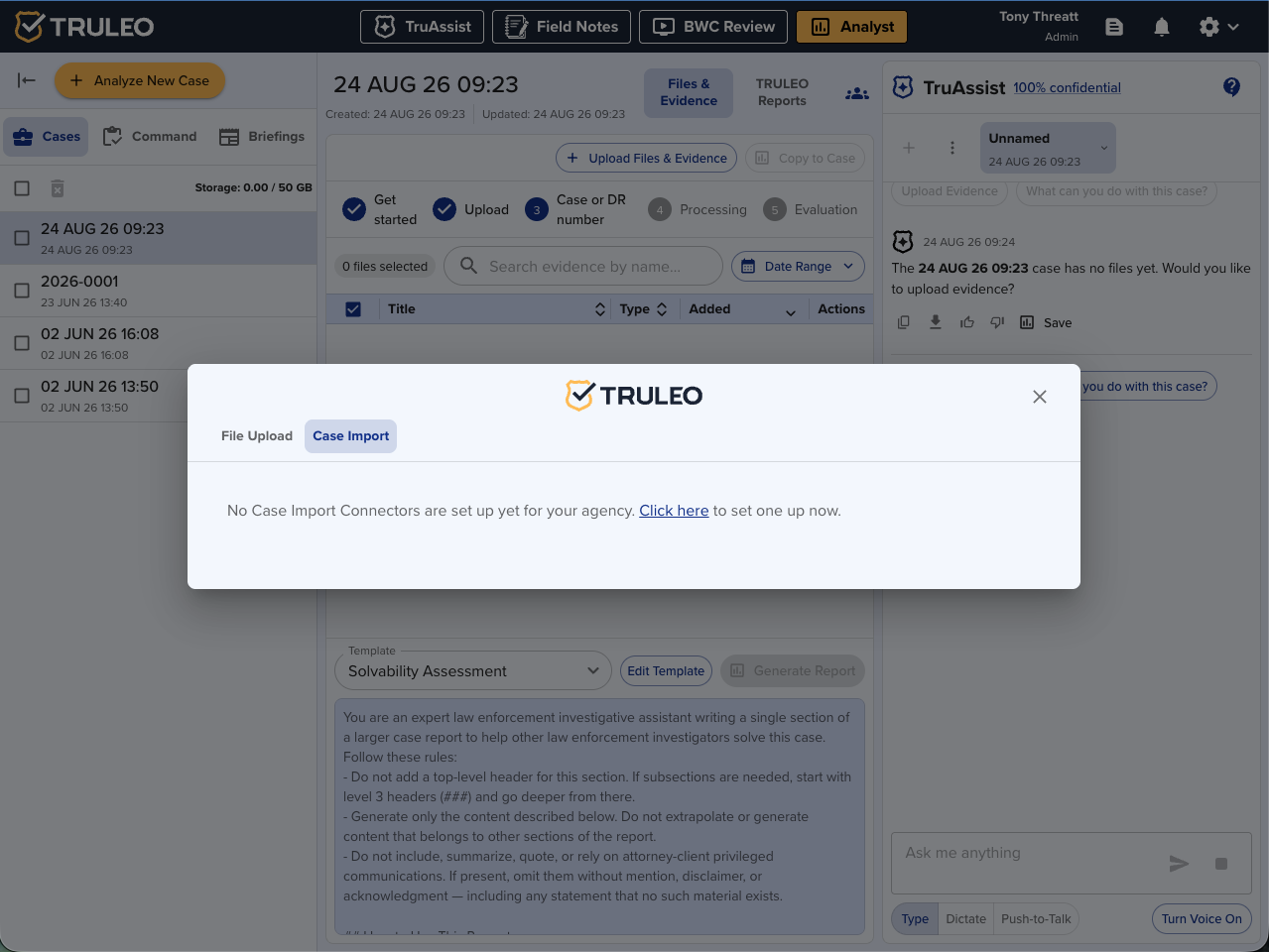
- In the upload dialog, select the Case Import tab (alongside File Upload and Phone Extraction).
- Use Search cases… to find the Evidence.com case you want, or browse the list. Cases are grouped by connector if your agency has more than one. Each case shows its file count; cases already imported show a Queued tag.
- Check the box next to each case you want to bring in, then click Import Case Files.
- The button switches to Importing… and a progress bar tracks the import. You can navigate away from the dialog — the import keeps running in the background, and TRULEO sends an in-app notification when it finishes.
- When the import completes, the dialog shows Import complete - [case name]. If some files failed to come over, it shows an error count (for example, "2 files failed") along with how many imported successfully.
- Click Continue to Analysis to go back to the case and work with the newly imported files.
If your agency hasn't set up a Case Import connector yet, the Case Import tab shows a message instead of a case list. Admins see a link to set one up directly; other users see a message to contact their admin or TRULEO support.
Setting up a connector (admins)
Before anyone can import cases, an admin needs to configure a Case Import connector:
- Go to Settings and open Case Import Connectors.
- Click Add Connector.
- Enter a Display Name for the connector, choose the Type (Evidence.com or on-prem), and provide the Partner ID, Client ID, and Client Secret from your Evidence.com integration credentials.
- Save the connector. TRULEO begins indexing your agency's cases from that account on a regular schedule; newly indexed cases become available in the Case Import tab for all users.
Note: the existing BWC video connector settings (previously labeled "External Evidence Account Settings") are now labeled BWC Connectors, and live alongside the new Case Import Connectors section — they're separate integrations serving different purposes, so make sure you're configuring the one you need.
Best practices
- Set up your Case Import connector before your team needs it — indexing runs on a schedule, so cases won't be searchable immediately after adding a connector.
- Search by case number or name if your agency has a large volume of indexed cases.
- Let an import finish (or run in the background) before starting another import on the same case to avoid duplicate file processing.
- If files fail to import, re-select just the case and try again — TRULEO won't re-import files that already came over successfully.