![Asset 2.svg]](https://help.truleo.co/hubfs/Asset%202.svg)
Field Notes in TRULEO not only helps officers structure their narratives through formatting templates, it also provides report checklists to ensure that every critical element is captured. These checklists appear in the TruAssist conversation panel when you select a report type. They act as a to‑do list for the report – you can compare what you’ve recorded against the checklist and fill in any missing details. Follow the steps below to view and use report checklists.
1. Start or open a note
-
Open a note in the Field Notes module. The main workspace is divided into a left‑hand panel for your notes (Enhanced Narrative, Digital Notepad, Video Insights, BWC, Files, Mobile) and a right‑hand panel where TruAssist (the AI assistant) chats with you. The Digital Notepad is where your typed or dictated notes will be stored and used to generate the Enhanced Narrative.
-
In the chat panel, choose an appropriate report type from the drop‑down menu (e.g., Other – General Report, Theft, Traffic Accident, etc.). The chosen report type tells TruAssist what checklist to load.
2. Let TruAssist surface the report checklist
After you select a report type, TruAssist introduces itself and provides a checklist of key items to cover. For a general report the checklist looks like this:
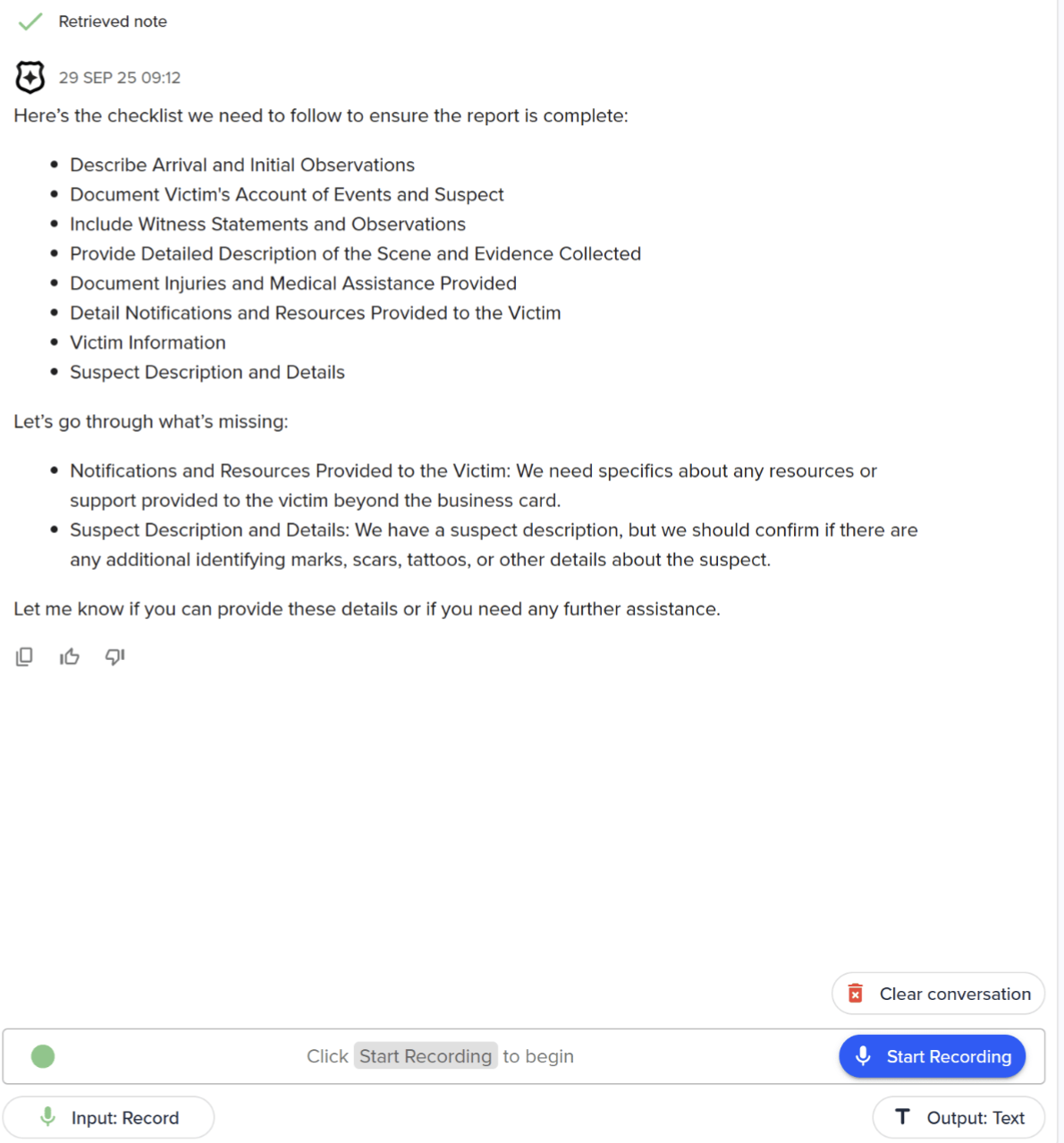
The assistant lists the points in plain language and encourages you to begin with the first item. In the example shown above, TruAssist suggests covering:
-
Describe arrival and initial observations – how you arrived on scene, what you saw and heard.
-
Document reporting party’s account of events – the complainant’s version of what happened.
-
Record witness statements and observations – what any witnesses saw, heard or recorded.
-
Provide detailed description of involved parties – names, identifiers and physical descriptions.
-
Document evidence and actions taken – any evidence collected, commands given, citations issued or arrests made.
-
Description of events and timeline – a chronological summary of what occurred.
These items change depending on the report type you select. By following TruAssist’s checklist you can be sure that your narrative addresses all critical details.
3. Capture your notes and check off items
-
Add information in the Digital Notepad by typing or using voice dictation. Your notes populate the left‑hand panel and TruAssist uses them to generate suggestions for the narrative. As you work through the list, you can mentally check off items or ask TruAssist whether anything is still missing.
-
Ask follow‑up questions if you’re unsure how to handle a checklist item. TruAssist can clarify what it’s looking for (for example, the difference between witness statements and the reporting party’s account).
-
If your agency uses Body‑Worn Camera (BWC) video, attach footage in the BWC tab and click Generate Video Insights. TRULEO will summarize the video into numbered bullet points in the Video Insights tab, which you can then reference as you write the narrative.
4. Generate your narrative and finalize the report
-
Once you’ve addressed each checklist item, click Generate Narrative at the top of the left panel. TRULEO will compile your notes into a polished narrative while preserving your voice and point of view. Because you followed the checklist, the resulting report should be comprehensive and well‑structured.
-
Review the narrative, make any edits and copy it into your records management system. You can revisit TruAssist’s checklist at any time to ensure nothing has been overlooked.
Summary
Report checklists in Field Notes act like a built‑in quality‑assurance tool. By selecting a report type, TruAssist automatically provides a tailored list of information you need to capture, such as arrival details, witness statements, descriptions of involved parties and evidence collected. Using the checklist alongside the Digital Notepad and Video Insights tabs helps you gather complete, accurate information and ensures your final narrative includes all critical details.