![Asset 2.svg]](https://help.truleo.co/hubfs/Asset%202.svg)
Overview
Look for the bell icon in the top bar. A green badge appears on it whenever you have unread notifications, showing how many you have. Notifications cover activity in both Analyst and TruAssist, including:
- Analyst files processed — your uploaded files have finished processing and are ready to review
- Analyst report generated — a new report is ready to review
- Analyst collaboration invitation — someone has invited you to collaborate on a case, briefing, or command package
- TruAssist task complete — a TruAssist task you started has finished
- TruAssist task failed — a TruAssist task encountered an error
- TruAssist file ready — a file you uploaded to TruAssist has been processed and is ready
Each notification names the specific item it's about — for example, "Case Files Processed," "Briefing Report Generated," or "Command Package Collaboration Invitation," depending on which type of Analyst package it relates to.
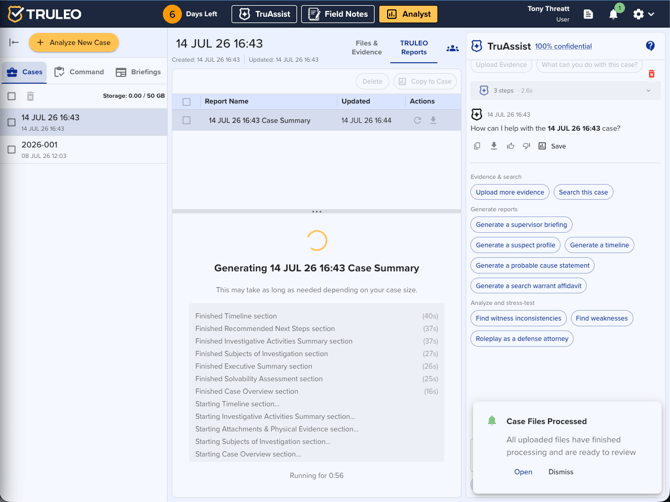
Viewing your notifications
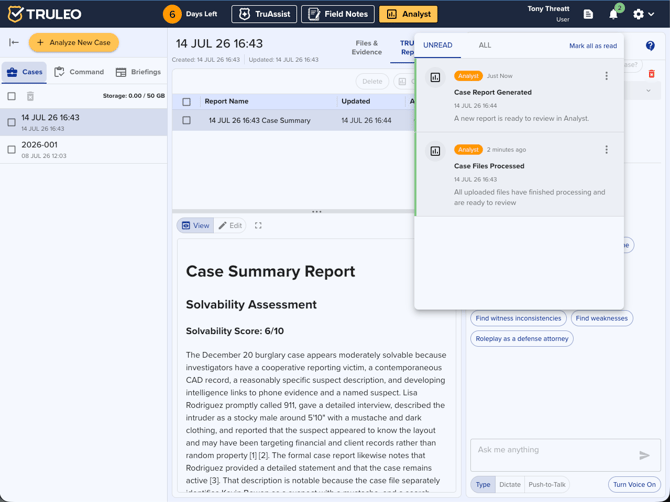
- Click the bell icon in the top bar to open the notification center.
- Use the Unread and All tabs to switch between just what's new and your full notification history.
- Click Open on any notification to jump straight to the related item — the case, report, or TruAssist session it's about. Opening a notification automatically marks it as read.
Managing notifications
- Click Mark all as read at the top of the notification center to clear every unread notification in the current tab at once.
- To mark a single notification as read without opening it, click the ⋯ menu on that notification and choose Mark as read.
- If you have no notifications yet, the center simply shows "No notifications."
Real-time pop-up alerts
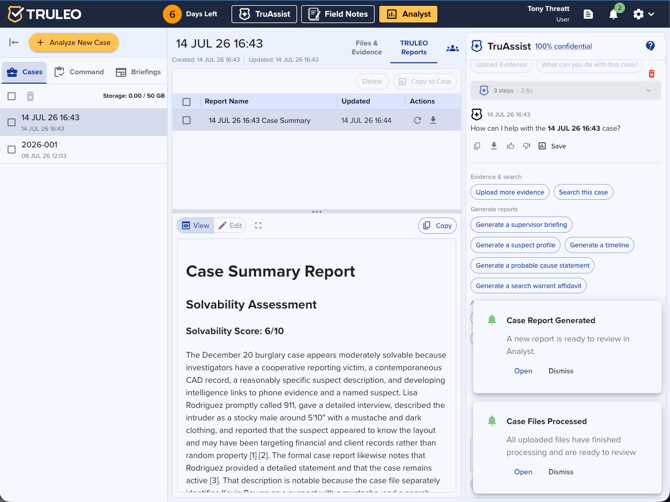
New notifications also appear briefly as pop-up cards in the bottom-right corner of the screen, so you don't have to have the notification center open to notice them. If several notifications arrive close together, TRULEO shows you the most recent ones first; anything else is still waiting for you in the notification center. Pop-ups pause while the notification center itself is open, so the two don't overlap.
Browser & OS notifications
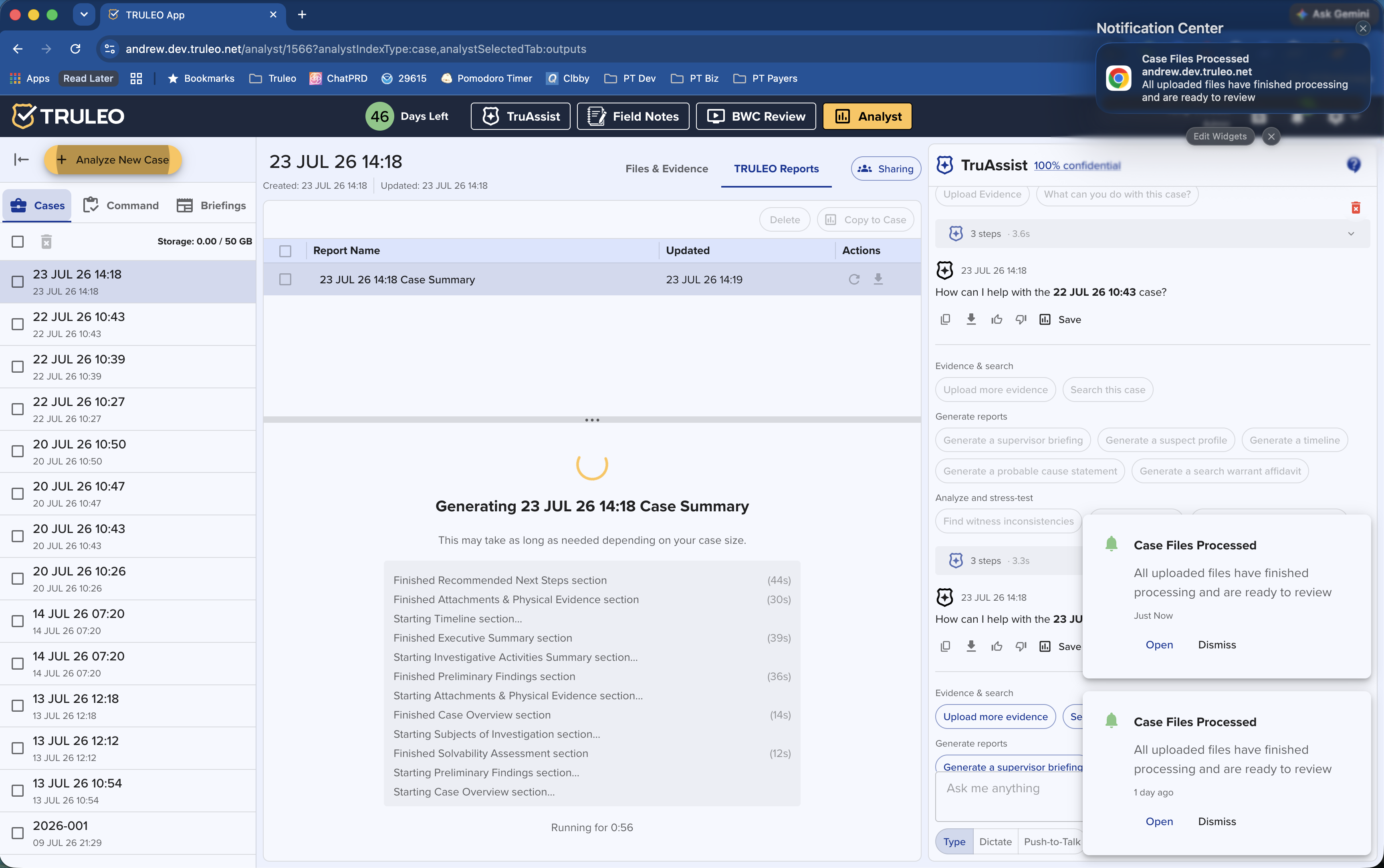
TRULEO can also send notifications through your browser, so you'll see an alert even when the TRULEO tab isn't in focus.
- Starting on your second login (not your first), your browser will ask for permission to show notifications. If you dismiss or deny this prompt, TRULEO can't ask again automatically — you'll need to re-enable notifications from your browser's site settings (next to the address bar) and reload the page.
- Browser notifications only appear while the TRULEO tab is out of focus (e.g., you've switched to another tab or app).
- Clicking a browser notification brings the TRULEO tab into focus and takes you to the related item.
Notification preferences
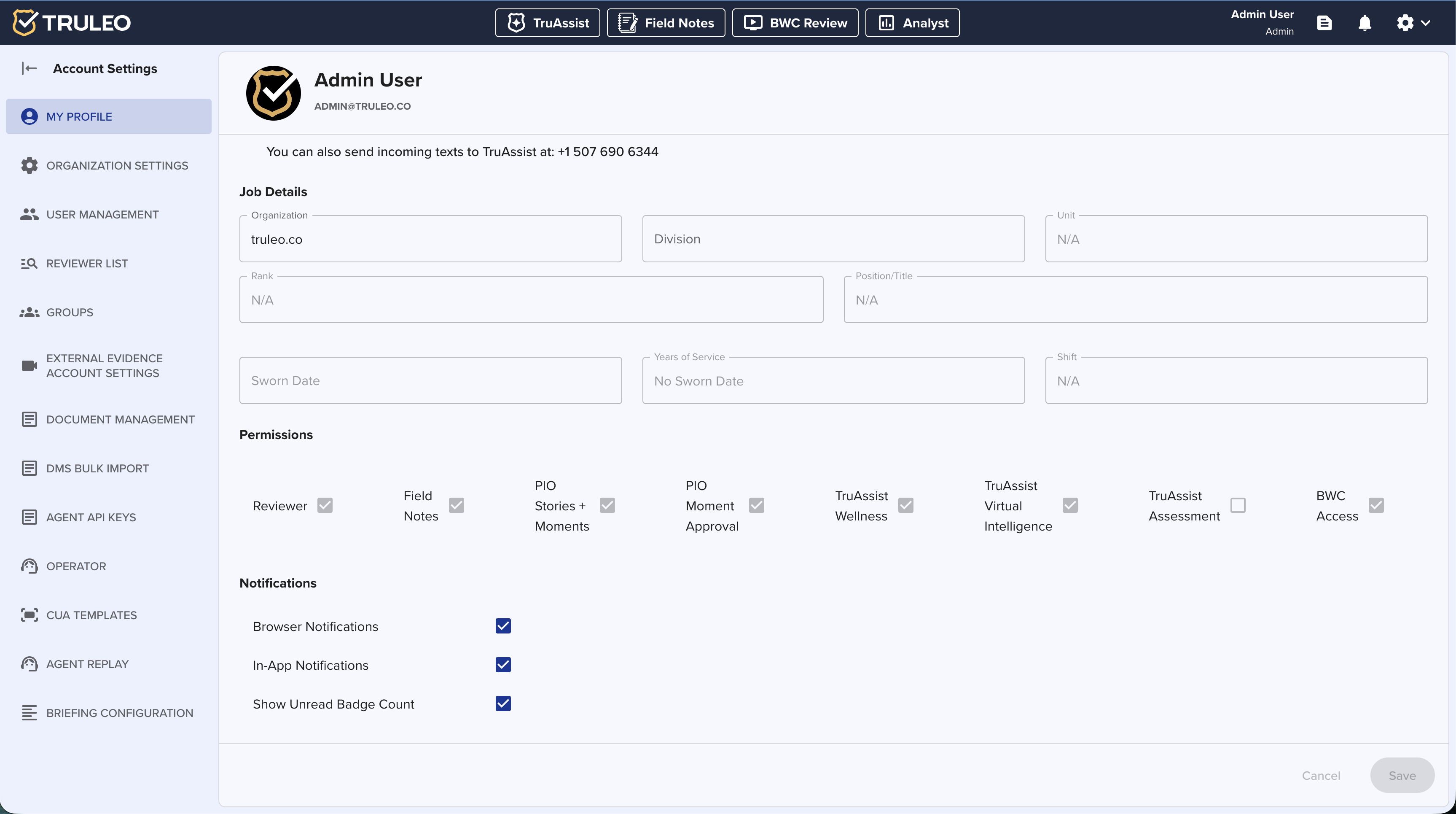
You can control how notifications behave from Settings > My Profile, under the Notifications section:
- Browser Notifications — turn desktop/OS-level notification alerts on or off. If your browser has blocked notifications for TRULEO, a note appears here reminding you to enable them from your browser's site controls and reload the page.
- In-App Notifications — turn the bottom-right pop-up cards on or off.
- Show Unread Badge Count — when on, the bell icon badge shows the exact number of unread notifications; when off, it shows a plain dot instead of a count.
All three are on by default.
Best practices
- Check the bell icon regularly during active Analyst or TruAssist work — it's the fastest way to know when a report or file is ready without re-checking manually.
- Use Mark all as read to keep your unread count meaningful, especially after a busy session with several uploads or reports running at once.
- If a TruAssist task shows as failed, open the notification to go straight to that session and see what happened.
- If you missed the browser notification permission prompt, enable it manually from your browser's site settings for app.truleo.net.