![Asset 2.svg]](https://help.truleo.co/hubfs/Asset%202.svg)
Reset your password
- Go to https://app.truleo.net and enter your username.
- Click Next. You'll see either TRULEO's sign-in screen or your department's single sign-on (SSO).
- If your department uses SSO: follow your department's procedures to reset your password — TRULEO doesn't manage SSO credentials.
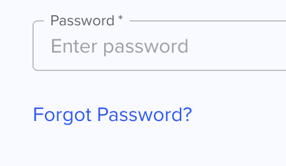
- If you use TRULEO sign-in: click Forgot Password beneath the password field.
- Check your email for a reset link and create a new password.
Reset your PIN
If your agency uses a PIN for quick access and you've forgotten it, sign in with your password first, then update your PIN in your account settings. If you can't sign in at all, reset your password using the steps above, then set a new PIN.
Locked or disabled account
- Too many failed attempts: your account may temporarily lock for security. Wait a few minutes and try again, or reset your password to regain access immediately.
- Account disabled by an admin: your agency administrator controls who has access. If your account was disabled or removed, contact your department's TRULEO administrator to re-enable it.
Common login problems
- "Account not found" or wrong username: confirm you're using the email your agency invited. If you started a personal free trial earlier, you may have a second login — contact support to merge them.
- "Phone number already in use": your number is tied to an existing account. See "Phone number already in use — moving from a free trial to your agency account."
- Invite link expired: ask your administrator to resend the invitation.
Best practices
- Use your work email so your agency administrator can manage your access.
- If SSO is enabled, always reset through your department's system, not TRULEO.
- Still stuck after a password reset? Contact support@truleo.co with your username and the exact error message.