![Asset 2.svg]](https://help.truleo.co/hubfs/Asset%202.svg)
The Template tab sits alongside other Field Notes tools (Digital Notepad and Narrative). The Template dropdown lets you load agency‑approved templates, save your own formatting instructions and clear the current set of guidelines. The steps below show how to apply and manage Templates.
1. Navigate to the Template tab
-
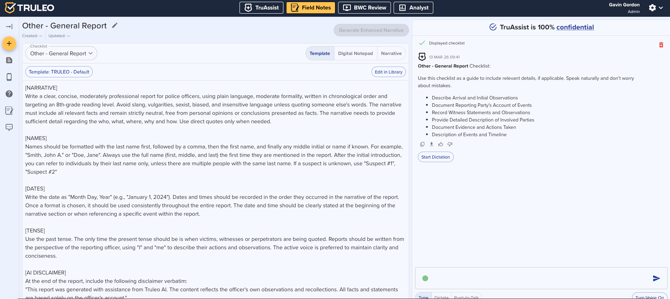
Open a note in the Field Notes module. A series of tabs will be visible across the top (Template, Digital Notepad, Narrative).
-
Select the “Template” tab. This tab displays an instructions panel on the left and a transcript/panel on the right. The instructions panel contains headings such as Header, Professionalism, Level of detail and other guidelines that help structure your narrative.
2. Choose a formatting template
-
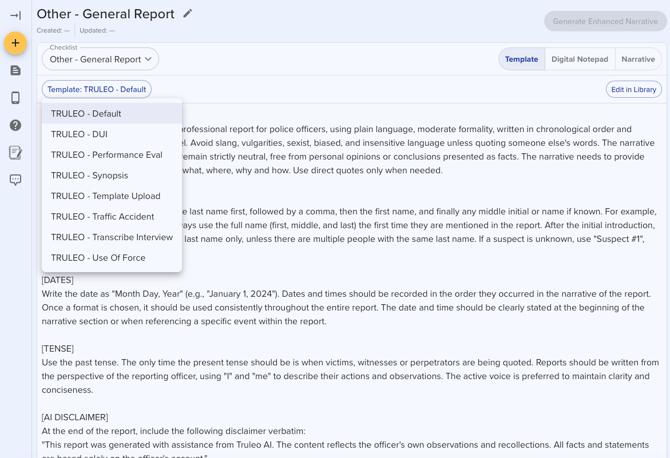
Click the “Template:” dropdown beneath the Checklist selection
-
TRULEO Templates – built‑in templates such as Default, Synopsis, Theft, Traffic, etc. Each template contains suggested headings and tone appropriate to that report type.
-
-
Click a template name to apply it. The instructions panel updates immediately with the guidelines from the selected template. These guidelines are only visible to you and are not included in the final report.
3. Write your narrative using the guidelines
-
The instructions panel provides guidance for each part of your narrative. For example, the Professionalism section reminds you to use plain language and avoid slang, vulgarities and biased language. Other sections explain how to describe names (last name first) and dates (MM/DD/YYYY), and how much detail is needed.
-
Use these guidelines as you type or dictate your notes in the right‑hand panel or the Digital Notepad. TRULEO uses these notes to generate a polished narrative.
4. Create or update a custom Template
If the built‑in templates don’t meet your needs, you can edit the instructions and save them as a new template:
-
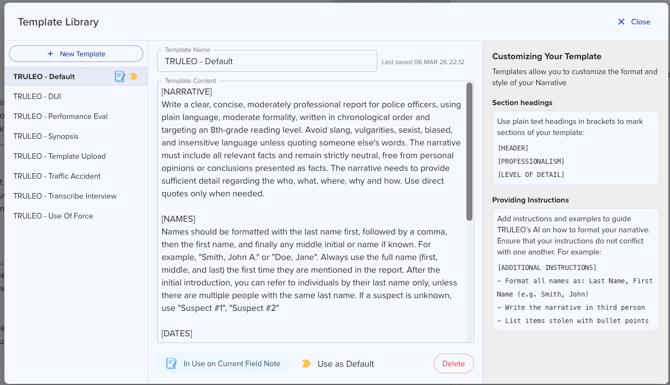
Open the Template Library to view the currently available templates
-
Click New Template to create a new record. Name the Template and use the "Customizing Your Template" section as a guideline to create your Template in the Template Content section
-
Check Share with organization if you want the template visible to everyone in your department — they can use it but can't edit or delete it unless they're an admin.
-
Click Create. Your custom template is now listed in the dropdown for quick access, grouped under MY TEMPLATES (yours), DEPARTMENT (shared by teammates), or TRULEO (built-in).
- You can select Use with Current Field Note to select your Template, or you can select it in the Template dropdown
Summary
The Template dropdown in TRULEO’s Field Notes provides a library of narrative templates and guidelines to help officers write clear, professional and thorough reports. By selecting a pre‑built template or saving your own, you can standardize reports across your agency. The dropdown menu and Template Library make it easy to apply, customize and reset these reporting templates.