![Asset 2.svg]](https://help.truleo.co/hubfs/Asset%202.svg)
See Supported Upload Types for the full list of accepted formats.
Upload is slow or timing out
Large audio, video, and document files can take several minutes to upload depending on your connection.
- Confirm your internet connection is stable. Agency VPNs sometimes throttle large uploads.
- Note the file size. Very large files may take 30 minutes or longer on slow connections.
- Try uploading one file at a time instead of a large batch.
- Re-export the file from the original application and try again.
- If the upload fails repeatedly, contact support@truleo.co with the file name, format, and approximate size.
File uploaded but stuck on "pending"
After upload, TRULEO processes each file so it can be searched, summarized, and included in reports. Processing time varies by file type and size.
- Confirm the file type is supported and the file is not password-protected or corrupted.
- Open the file on your computer to verify it plays or opens normally.
- Wait a few minutes — audio and video files typically take longer than documents.
- Try re-saving or converting the file (for example, re-export audio as MP3 or WAV).
- If the file remains pending after an hour, remove it from the case and upload a clean copy.
Upload fails immediately
- Check that the file extension matches a supported format.
- If a PDF is a scan or photo of a page, make sure the text is readable. Re-export it from the source at a higher quality if the pages are blurry or cut off.
- Confirm you have not exceeded storage limits on your account (contact support if unsure).
- If your free trial has expired, some upload actions may be restricted — see Free trial extensions and expiration.
- Cellebrite UFDR files are supported — upload the `.ufdr` as-is on the File Upload tab. If the dump is over 15 GB, export a smaller subset from Cellebrite. See Uploading UFDR files.
TruAssist can't see my file yet
TruAssist can only search a file after processing finishes. While a file shows as pending, TruAssist may say it can't find the file or its contents.
-
Check that the file shows as fully processed (not pending) before asking questions about it.
-
If it is still pending, wait a few minutes and ask again. Larger files and audio or video take longer.
-
If you uploaded a long batch, ask about one file by name to confirm it is visible.
-
If the file stays pending for more than an hour, follow the steps in "File uploaded but stuck on pending" above.
Policy document imports from PowerDMS
If a PowerDMS policy import includes a document with unexpected or invalid fields, TRULEO no longer fails the whole import. It skips just the problem entries and shows a warning listing the titles of any documents that were skipped, so you know exactly what didn't come through and can check those specific documents on the PowerDMS side.
File size and storage limits
Storage quota
Each user has a 50 GB storage quota for Analyst case files. There is no separate per-file size limit — the largest file you can upload is limited by how much storage you have remaining.
How that quota is measured depends on your account type:
| Account type | How the 50 GB is measured |
|---|---|
| Free | All-time — every file you've ever uploaded counts toward the limit |
| FTO | Rolling 30-day window — only uploads from the last 30 days count |
For example: if you have used 40 GB of your quota, the largest single file you can upload is 10 GB, even though the overall quota is 50 GB.
Deleting a case can free up storage — files that were only attached to that case are removed from your quota total. If the same file is linked to another active case, it still counts toward your limit.
When a free trial expires, uploads are blocked entirely — it's not a reduced quota.
Files inside ZIP archives that exceed 2 GB are skipped during extraction — extract and upload those files individually instead.
Processing limits
- CSV and Excel files over 45 MB are automatically split during processing — no action needed
- Documents exceeding 100,000 pages cannot be processed
AI summaries or report generation stopped working after a batch upload
When multiple files fail to process, downstream AI features in Analyst may not work correctly for that case.
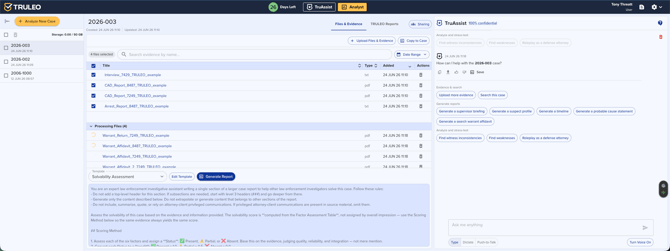
- Open the case in Analyst and go to the Files & Evidence tab.
- Look for files still showing as pending or that failed to process.
- Remove or replace any problem files with clean copies.
- Wait until all selected files show as fully processed.
- Re-run your summary or click Generate Report again.
One corrupted or unsupported file in a case can sometimes prevent AI features from working across the entire case until it is removed.
Supported formats quick reference
Documents: PDF, HTML, TXT, DOCX, DOC, XLSX, XLS, CSV
Audio: WMA, M4A, MP3, WAV
Video: WMV, WTV, MPEG, TS, MP4, WebM, MOV, AVI
Images: JPEG, JPG, PNG, GIF
Best practices
- Upload files in smaller batches when working with many large audio or video files.
- Verify files open normally on your computer before uploading.
- Use supported formats rather than proprietary or renamed extensions.
- Remove failed files promptly so they do not block case-level AI features.