![Asset 2.svg]](https://help.truleo.co/hubfs/Asset%202.svg)
Note: The same steps work for any TruAssist answer, not only a PDF.
Put the data in a table
- Open TruAssist. If you do not already have a chat open, click Create chat.
- Click the add-file button under the message box (tooltip: Add file).
- In the Add file to conversation dialog, choose the PDF and click Upload. Wait until the file finishes processing.
- Ask TruAssist to extract the data and put it in a table. Name the columns you want. For example: "Extract the names, dates, and amounts from this PDF. Put them in a table with those three columns."
- Wait until the answer finishes. It should show a table on screen.
TruAssist may say it cannot create an Excel file, or that you need to copy and paste. Continue to the download step. The download button creates the file.
Download the answer as Excel
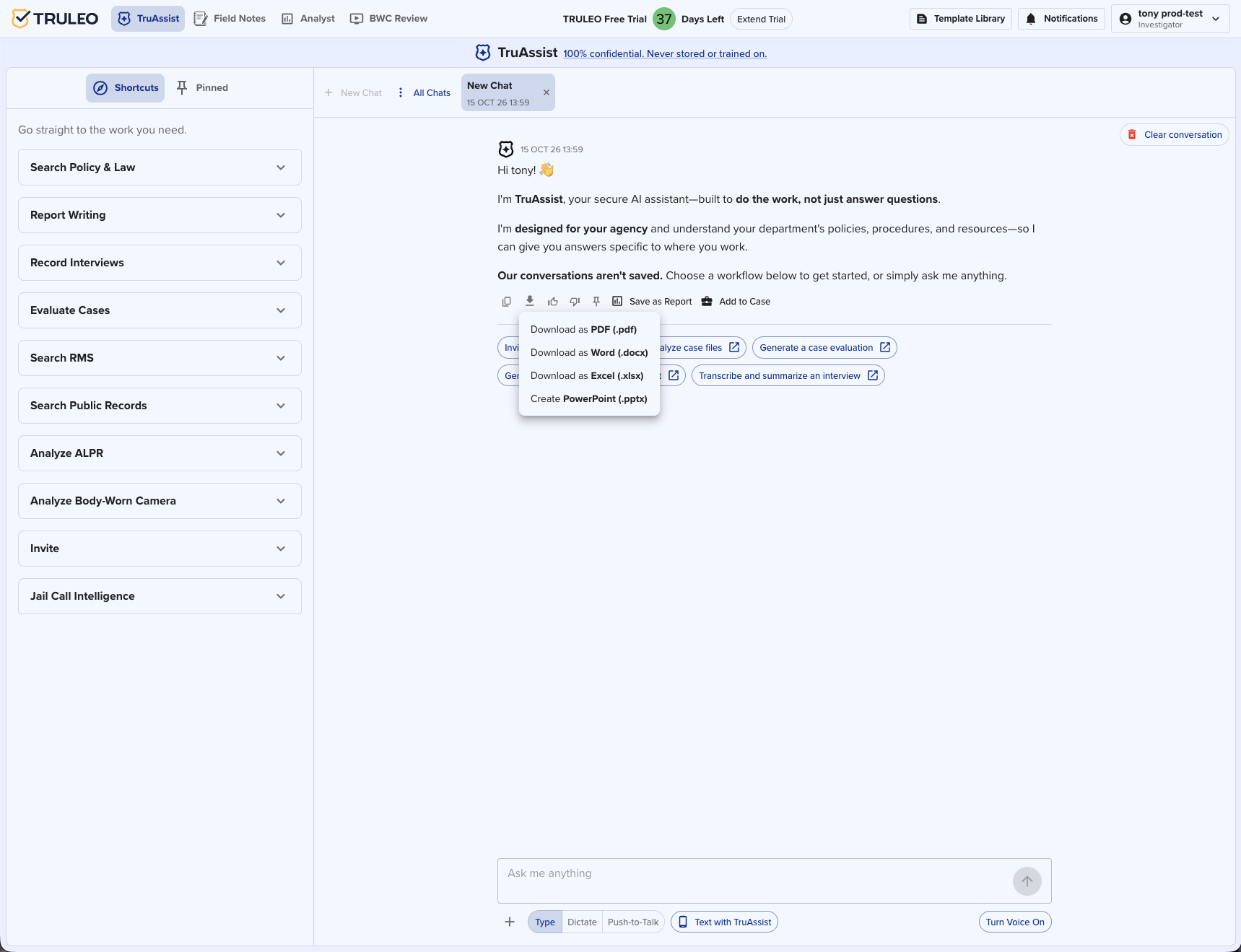
- On the finished answer, click Download.
- Choose Download as Excel (.xlsx).
- Open the file.
- Each table is its own sheet, named Table 1, Table 2, and so on. The first row of each sheet is the column headers.
- Any other text in the answer is on a sheet named Content.
If the spreadsheet is one column of text
The answer was not a table. TruAssist still downloads an Excel file, but each paragraph or list item is stacked in column A of Sheet 1.
- In the same chat, ask again and name the columns. For example: "Put that data in a table with columns for name, date, and amount."
- Download the new answer as Excel (.xlsx).
Best practices
- Name the columns in your request. A vague "make this a spreadsheet" often comes back as paragraphs, and those land in one column.
- Ask for one table per kind of data. Each table becomes its own sheet.
- Open the file and check the sheets before you share it. The PDF is not the spreadsheet — the table in the answer is.