![Asset 2.svg]](https://help.truleo.co/hubfs/Asset%202.svg)
Overview
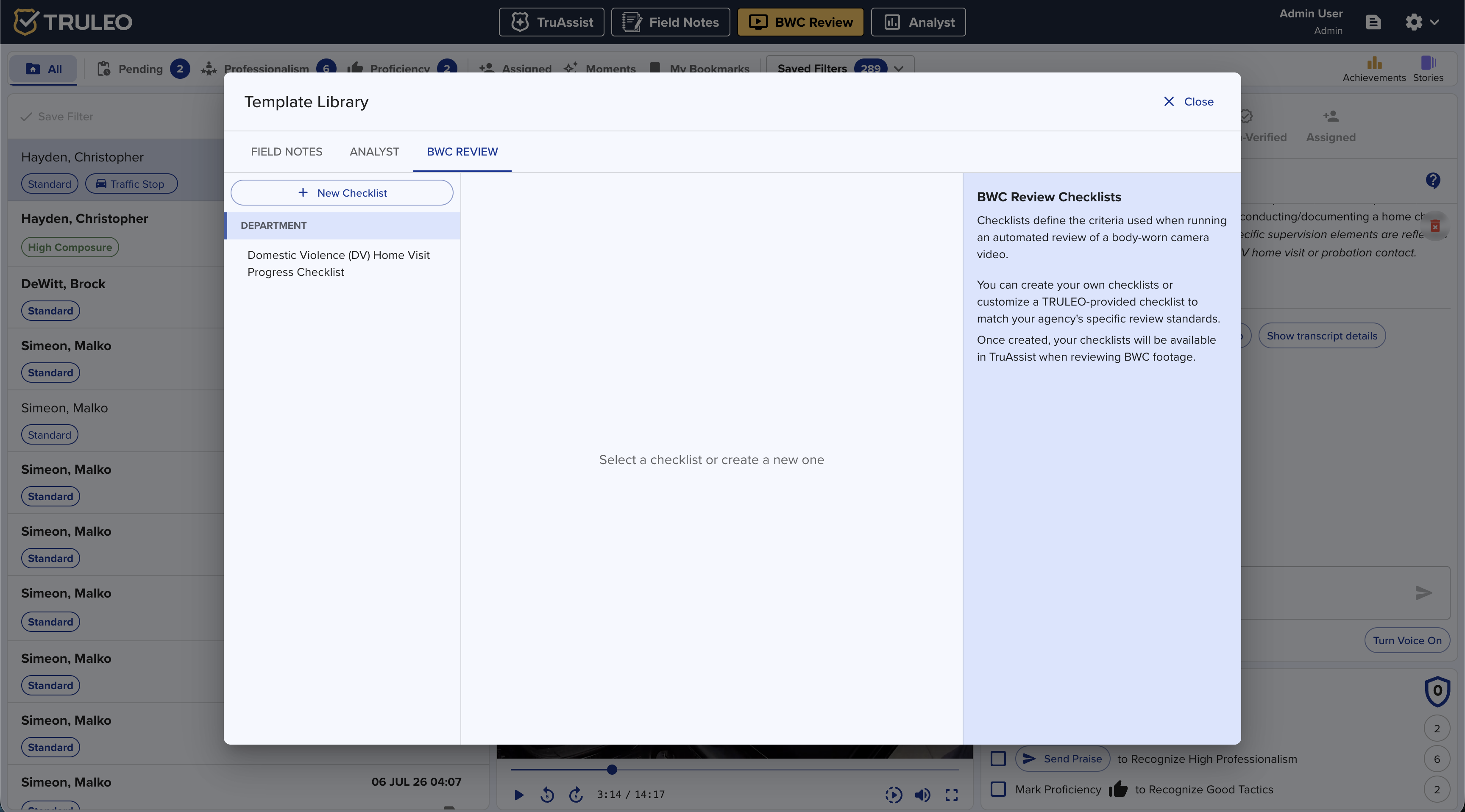
When you open a video on BWC Review, TruAssist appears as a tab in the right-hand panel and becomes the default view. TruAssist loads details for the selected video — officer, date, and related context — and offers checklist follow-ups so you can start a review without writing a custom prompt.
Checklist reviews require the TruAssist Assessment permission. Admins manage that permission in User Management. Checklists are maintained in Template Library → BWC REVIEW.
Open TruAssist on a BWC video
- Open BWC Review from the top navigation
- Select a video from the inbox or filter list
- Confirm the TruAssist tab is selected in the right panel (it opens by default when a processed video is selected)
- Wait for TruAssist to greet you with the officer name and recording date, plus suggested checklist follow-ups
If the video is still processing, finish processing before running a checklist review — TruAssist needs the transcript to grade checklist items.
Run a checklist review
- Click a follow-up such as Run [checklist name] review, or type a request like "Run a DV interview review"
- If more than one checklist could apply, TruAssist shows a checklist selector — choose the checklist and submit
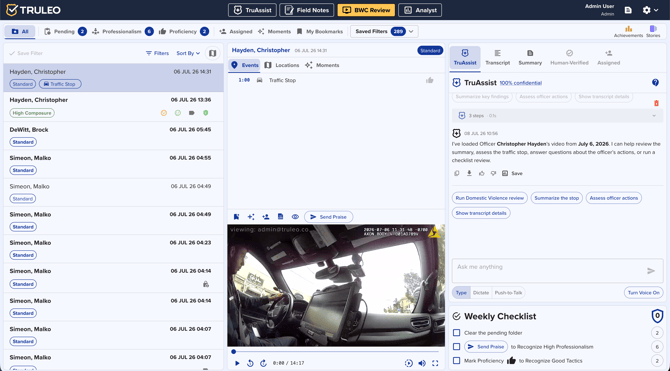
- TruAssist evaluates the video transcript against every item on the checklist
- Review the structured report TruAssist returns
The report includes:
- The checklist name as the heading
- Items grouped by category (when your checklist uses
[Category]headers) - A result per item — yes/no (✅ / ❌ / N/A), a scale score, freeform notes, or Unable to determine
- Short reasoning under each item
- Timestamped transcript excerpts you can click to jump to that moment in the video
What "Unable to determine" means
Some checklist items cannot be scored from the transcript alone — for example, file naming, upload deadlines, or camera metadata. TruAssist marks those Unable to determine and explains what is missing so a human reviewer can complete them.
Jump from the evidence to the transcript
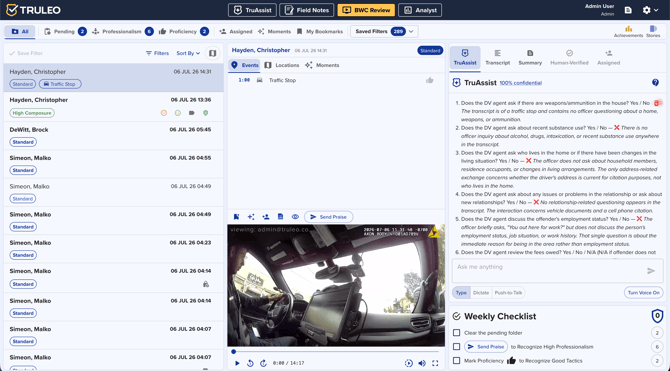
- In the review report, click a timestamp link next to an excerpt (for example
00:04:12) - TRULEO opens or focuses the transcript at that segment and syncs video playback
- Use the Transcript tab anytime to scrub, read, or confirm context around a flagged moment
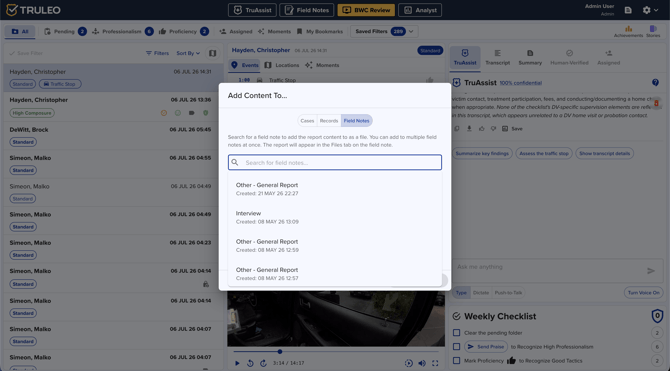
Save the review with Add Content To…
After TruAssist finishes the review, save the report into your workflow:
- Click the save / Add Content To… action on the TruAssist response
- Choose a destination:
- Cases — adds the report as a file on an Analyst case (appears under Evidence / Files)
- Reports — adds the report as a file on an Analyst report
- Field Notes — attaches the report as a document on one or more Field Notes
- Search for and select one or more destinations
- Submit, then use the success links to open the Case, Report, or Field Note you updated
You can add the same content to multiple destinations in one save. Field Notes destinations are available when you are saving TruAssist text content (such as a checklist review report).
Manage BWC review checklists
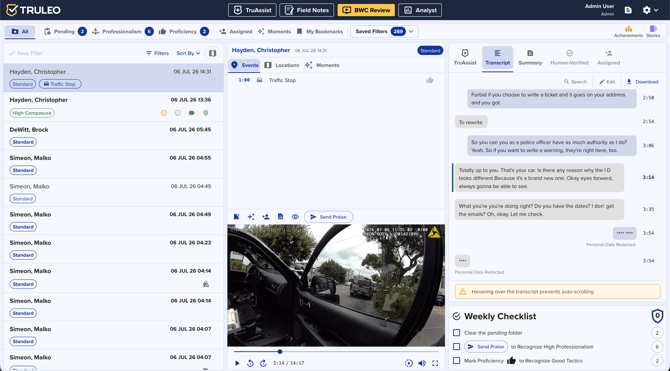
Checklists define the criteria TruAssist uses when it reviews a video. Create and share them from Template Library.
- Click the Template Library icon in the top navigation
- Open the BWC REVIEW tab
- Browse:
- MY CHECKLISTS — checklists you own
- DEPARTMENT — checklists shared with your organization
- TRULEO — TRULEO-provided checklists (read-only until you customize)
- Click New Checklist to create one, or open a TRULEO checklist and use Customize Template to fork a department-ready copy
- Write checklist content as plain text. Optionally group items under category headers in square brackets, for example:
[Introduction]
Did the officer introduce themselves by name and agency?
Did the officer state the purpose of the contact?
[Interview questions]
Ask about recent substance use
Ask whether anyone else was present
[Coaching notes]
Strengths:
Improvements needed:
- Name the checklist, optionally check Share with organization, and save
Shared (department) checklists are editable by the owner and by admins. TRULEO-managed checklists stay read-only — customize them into a personal or department copy before editing.
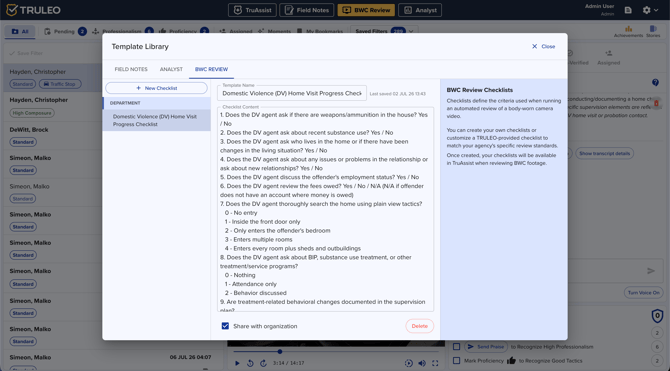
Once saved, your checklists appear as TruAssist follow-ups when reviewers open a BWC video.
Who can use this
|
Capability |
Who |
|---|---|
|
See TruAssist on BWC Review |
Users with access to BWC Review |
|
Run checklist reviews and see checklist follow-ups |
Users with TruAssist Assessment permission |
|
Create personal checklists |
Users with Template Library access and TruAssist Assessment |
|
Share or edit department checklists |
Checklist owner, or an Admin for shared checklists |
|
Save to Cases / Reports |
Users with Analyst Cases / Analyst Reports access |
|
Save to Field Notes |
Users with Field Notes access (when saving text content) |
If TruAssist does not offer checklist follow-ups, contact your admin to enable TruAssist Assessment and to publish department checklists.
Best practices
- Standardize on a small set of department-shared checklists so every supervisor grades the same criteria
- Put category headers in
[brackets]so the scorecard is easy to scan during coaching - Prefer clear yes/no or scaled items for consistency; use freeform lines for strengths and improvements
- Click evidence timestamps before coaching — confirm tone and context in the video, not only the excerpt
- Save completed reviews to the Case or Field Note that owns the incident so the scorecard stays with the file
- Ask TruAssist follow-up questions on the same video ("What policies apply to this search?" or "Summarize the subject interview") after the checklist review — the selected video stays in context