![Asset 2.svg]](https://help.truleo.co/hubfs/Asset%202.svg)
What connectors do
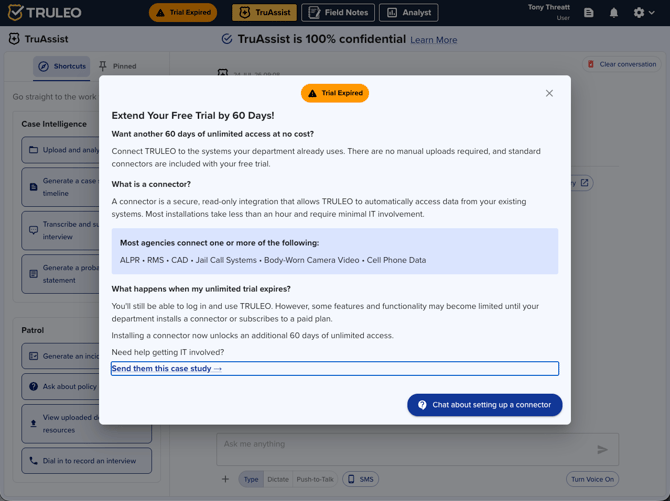
Connectors let TRULEO access data from your existing agency systems so officers do not have to upload files by hand. Common connector types include:
- Body-worn camera (BWC) video — Axon and other providers
- Records management system (RMS) — Tyler Enterprise, Mark43, and others
- CAD — computer-aided dispatch
- ALPR / LPR — automated license plate recognition
- Jail call systems
- Cell phone extraction data
Who sets up a connector
Connector setup requires coordination between your agency's IT or admin team and TRULEO Customer Success. Individual officers typically cannot complete the full setup alone — but you can start the conversation.
Officers can:
- Request a connector through in-app chat (Contact Sales / Support)
- Share TRULEO documentation with your IT team
- Ask your administrator to begin setup
Administrators and IT can:
- Provide API credentials from your vendor systems
- Configure connections in Account Settings
- Work with TRULEO Customer Success on RMS and agent-based connectors
How to get started
- Identify your agency's TRULEO administrator or point of contact.
- Decide which system to connect first — BWC and RMS are the most common starting points.
- For BWC, follow API Connection to generate and enter credentials.
- For RMS and other agent-based connectors, contact your Customer Success Manager — TRULEO may deploy a secure agent to access your records system.
- Allow time for testing. Most BWC connections take less than an hour of IT time; RMS integrations vary by vendor.
Connectors and free trials
Free trial users can extend unlimited access by connecting TRULEO to agency systems:
- Installing a connector unlocks additional trial days (shown in the trial status bar in the app).
- After trial expiration, some connector-dependent features remain limited until your agency subscribes or completes setup.
Use the trial status bar or in-app chat to talk with TRULEO about connector setup for your agency. TRULEO App Login
Connectors and paid agencies
For departments under contract, connectors are configured during onboarding:
- Kickoff call with your Customer Success Manager
- API or agent setup for BWC, RMS, and other systems
- Officer roster upload and permission configuration
- User invites and training
See Initial Onboarding Process for the full agency onboarding timeline.
RMS integration
RMS connectors let TruAssist and Analyst pull records, incident data, and case information directly from your agency's records system. Setup steps vary by vendor:
- Confirm your RMS vendor and version with TRULEO Customer Success.
- Provide read-only access credentials or approve TRULEO agent installation.
- Test with a small set of records before rolling out to all users.
RMS setup usually requires IT approval and a brief coordination call — plan for human follow-up even after reading this guide.
Best practices
- Start with one connector (BWC or RMS) before adding others.
- Share the TRULEO IT case study with your IT team to speed internal approval.
- Use in-app chat if you need help coordinating between your agency and TRULEO.
- Do not share API credentials in email — use secure channels your CSM provides.