![Asset 2.svg]](https://help.truleo.co/hubfs/Asset%202.svg)
Accessing Analyst
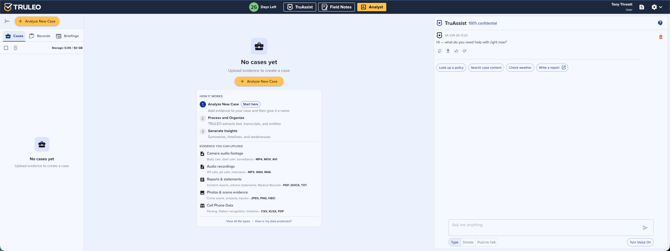
Log into TRULEO and select Analyst from the top navigation. The workspace has three sections: a left panel listing your cases, a center panel with files, evidence, and reports, and a right panel with the AI chat interface.
Main interface sections
The workspace contains three panels:
- Left panel: Lists cases organized in tabs — Cases, Command, and Briefings
- Center panel: Displays files, evidence, and reports
- Right panel: AI chat interface for natural language queries
Case management
Creating new cases
-
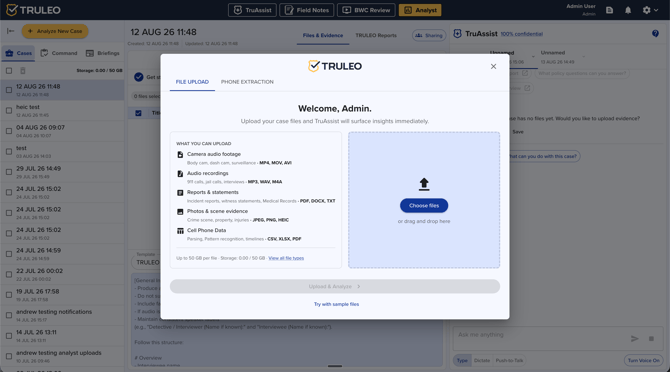
Click Analyze New Case — the upload dialog opens. (If you already have a case, TRULEO may first ask whether you use Evidence.com.
-
See Importing cases from Evidence.com.)
-
Add files by drag-and-drop or the file picker, or click Try with sample files to explore with sample data.
-
Once you've added files, a name field appears — Enter the case or DR number for this investigation — pre-filled with a placeholder you can keep or overwrite.
-
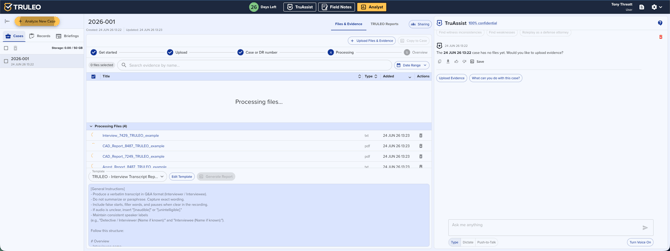
Click Upload & Analyze. The case is created with the name you entered and processing begins, and appears in the sidebar while it processes, then opens to its Overview once ready. The platform accepts reports, statements, audio/video, images, and transcripts.
-
Once processing finishes, Analyst no longer automatically switches you to the Reports tab to show the case evaluation — you stay on whichever tab you're viewing, and a notification lets you know it's ready. (Exploring with sample files still jumps you straight to the Reports tab.)
-
Notifications while you work are tab-aware: Analyst only surfaces the kind of update that doesn't match the tab you're already looking at.
Adding evidence
Select an existing case, then use Upload Files & Evidence in the Files & Evidence tab. Click Choose files to open the file picker, or drag files directly onto the dropzone — while dragging, the zone highlights and shows Drop files here. Once files are added, the button relabels to Add more files and the dialog shows how many files are queued below it. The system automatically indexes materials. Individual files can be up to 15 GB.
You can also upload a whole folder. In the upload window, click Choose folder, or drag a folder onto the drop zone. Choose files still adds individual files. Every supported file in the folder, including subfolders, is added to the case as its own document, named from its folder path (for example, Evidence/Photos/front.jpg becomes "Evidence_Photos_front").
Before you upload, a summary above the file list shows how many files will upload, their total size, and how many were skipped. Click the skipped count to see which files were skipped and why. Unsupported file types, files over the per-file limit, and hidden or system files (such as .DS_Store) are skipped without blocking the rest. You can remove files from the list, or add more files and folders, before you click Upload. If the files would put you over your storage allowance, you'll see an error and Upload stays disabled until you remove some.
If your connection drops or you reload the page during an upload, add the same file again and the upload picks up where it left off.
Free trial storage limit
Free trial users see an info icon next to the Storage: label in the Analyst sidebar. Click it to see your 50 GB storage limit — the dialog includes a Contact Sales button if you need more room.
Document operations
- Renaming: Click document titles to edit inline
- Preview: Click document rows to open preview dialogs without downloading. If a file's text is mostly in another language, click Translate to English in the preview, then switch between the Original Content and Translated Content tabs.
- Download: Click Download in the preview to save the file. For audio and video, you get a .zip with the recording and a text transcript. If you translated it, the .zip has both the original and the translated transcript.
- Case list details: After a Case Evaluation with a Solvability Assessment runs, the case list shows the solvability score (for example, Solvability 6/10) and the case type (for example, Robbery) under the case name.
- Case info: Click the info icon on a row in the case list to see when it was created and last updated, plus its Solvability and Case type. To delete it, click Delete in the same menu and confirm. (Cases are now deleted one at a time — the checkboxes for deleting several at once are gone.)
- Sorting: Click Sort By above the case list and choose a field: Create Date, Last Activity, or (on the Cases tab) Solvability or Case Type. Click the arrow next to the field to flip the direction (for example, Newest to Oldest or Oldest to Newest). Last Activity updates whenever a file is added or a report is generated in the case, not only when the case is renamed.
- File list order and search: Files in a case list newest first by the date the file occurred, falling back to the date it was uploaded. Field Notes and BWC Review file lists sort the same way. In a case's file list, search also matches document details such as names and locations, not just the title.
- Processing status: Pending files appear in a dedicated section above completed documents
Report generation workflow
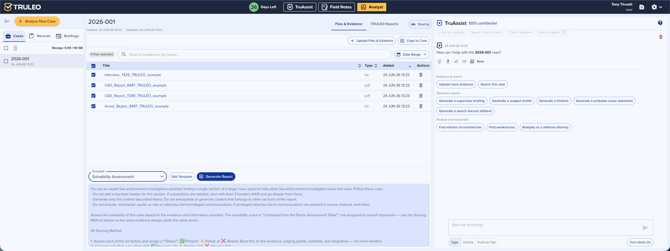
- Select relevant files using checkboxes
- Choose a template from the dropdown menu
- Click Generate Report
- Review and edit the draft in the TRULEO Reports tab
- Download as PDF or Word format
Reports include a Citations section listing source documents referenced. Every case package also gets a default, auto-generated case-level report — called Case Evaluation (previously labeled Case Overview / Case Summary). Regenerate it from the outputs list with Re-generate Case Evaluation.
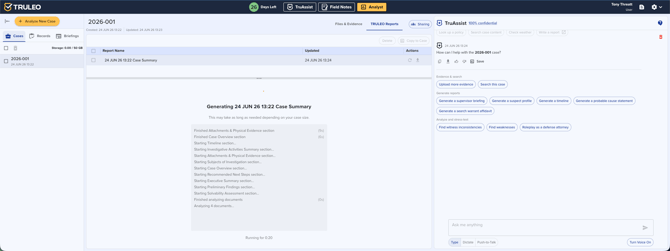
Analyst chat features
The AI assistant can address requests for summaries, witness identification, narrative drafting, and detail flagging. Following responses, the system surfaces categorized follow-up suggestions that adapt as cases progress. A Supervisor Briefing option generates command-level summaries when appropriate.
Document citations within chat responses open related materials directly in preview dialogs.
Saving content to a case, report, or field note
Each response in the Analyst chat has two buttons. Save as Report adds the response to a case as a Report. Add to Case adds it as an Evidence file. Both open the Add Content To… dialog with the current case already selected — name the content, add more cases if needed, and save. See Add Content To from TruAssist.
Case sharing and lifecycle
The Share button manages case access. Cases and briefings can also be shared with collaborators outside your own organization — an invited cross-org collaborator can view the shared case or briefing and open its documents.
Best practices
- Upload all relevant materials before generating reports
- Use descriptive case names for retrieval
- Select only pertinent files for specific reports
- Utilize follow-up suggestions to explore overlooked angles
- Review generated reports for accuracy and policy compliance before distribution