![Asset 2.svg]](https://help.truleo.co/hubfs/Asset%202.svg)
Overview
Add Content To… replaces the earlier Add to Analyst action. Each TruAssist response has two buttons that open it:
- Save as Report — adds the response to a case as a Report. Use this for AI analysis or write-ups.
- Add to Case — adds the response to a case as an Evidence file.
In standalone TruAssist and in Analyst, both buttons save to Cases only. On BWC Review you can also save to Command reports and Field Notes:
|
Destination |
Where the file appears |
|---|---|
|
Case |
Evidence / Files tab on the case |
|
Report |
Files tab on the report |
|
Field Note |
Files / Notepad area on the Field Note |
Field Notes appears as a destination when you are saving TruAssist text content (for example, a generated review report). Copying an existing uploaded document into a Field Note from this dialog is not supported yet.
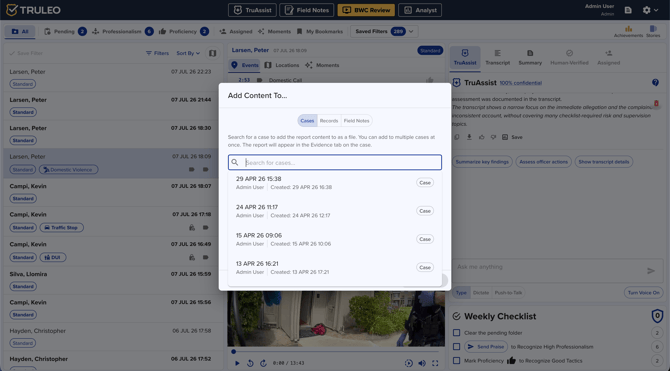
Save a TruAssist response
- Generate the content in TruAssist (standalone TruAssist, Analyst, or BWC Review)
- Click Save as Report or Add to Case on the response
- Choose Cases, Reports, or Field Notes
- Enter a name in the Report name field (it's pre-filled — keep it or change it), then search for the destination by name — you can select more than one
- Submit
- Use the success links to open each destination (Analyst opens on the inputs/files view; Field Notes opens on the notepad)
You can also add a source document to a case. When you open a document preview (for example, from a citation), click Add to Case. The file is added to the case as Evidence.
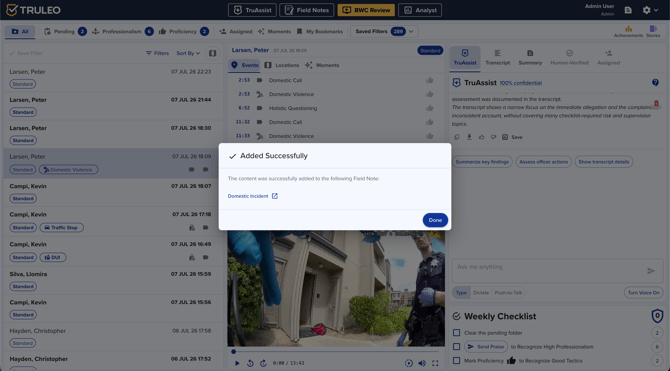
Common workflows
After a BWC checklist review
- On BWC Review, run a checklist review in the TruAssist tab
- Save the scorecard with Add Content To…
- Attach it to the related Case or Field Note so coaching notes stay with the incident file
See Use TruAssist to review BWC footage.
After research in standalone TruAssist
- Ask TruAssist for a policy answer, OSINT brief, or LPR vehicle profile
- Save the response into the Case you are building
- Continue editing or generate a report from Analyst
Best practices
- Save once to every destination that needs the same artifact — multi-select avoids duplicate regenerations
- Use consistent Case and Field Note names (RMS / DR numbers) so search finds them quickly
- After save, open the destination from the success links to confirm the file landed in the expected tab