![Asset 2.svg]](https://help.truleo.co/hubfs/Asset%202.svg)
Overview
A BWC review checklist is a plain-text list of criteria — yes/no questions, scaled items, or freeform coaching prompts. When a reviewer runs a checklist review in TruAssist, each line becomes a scored row on the scorecard.
You need TruAssist Assessment permission to see the BWC REVIEW tab in Template Library and to run checklist reviews.
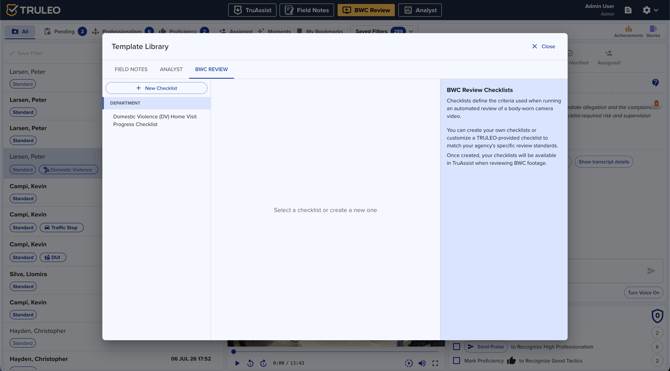
Open the BWC REVIEW template tab
- Click the Template Library icon in the top navigation
- Select the BWC REVIEW tab
- Review the three sections:
- MY CHECKLISTS — checklists you own
- DEPARTMENT — checklists shared organization-wide
- TRULEO — TRULEO-provided starters (read-only until customized)
Create a checklist
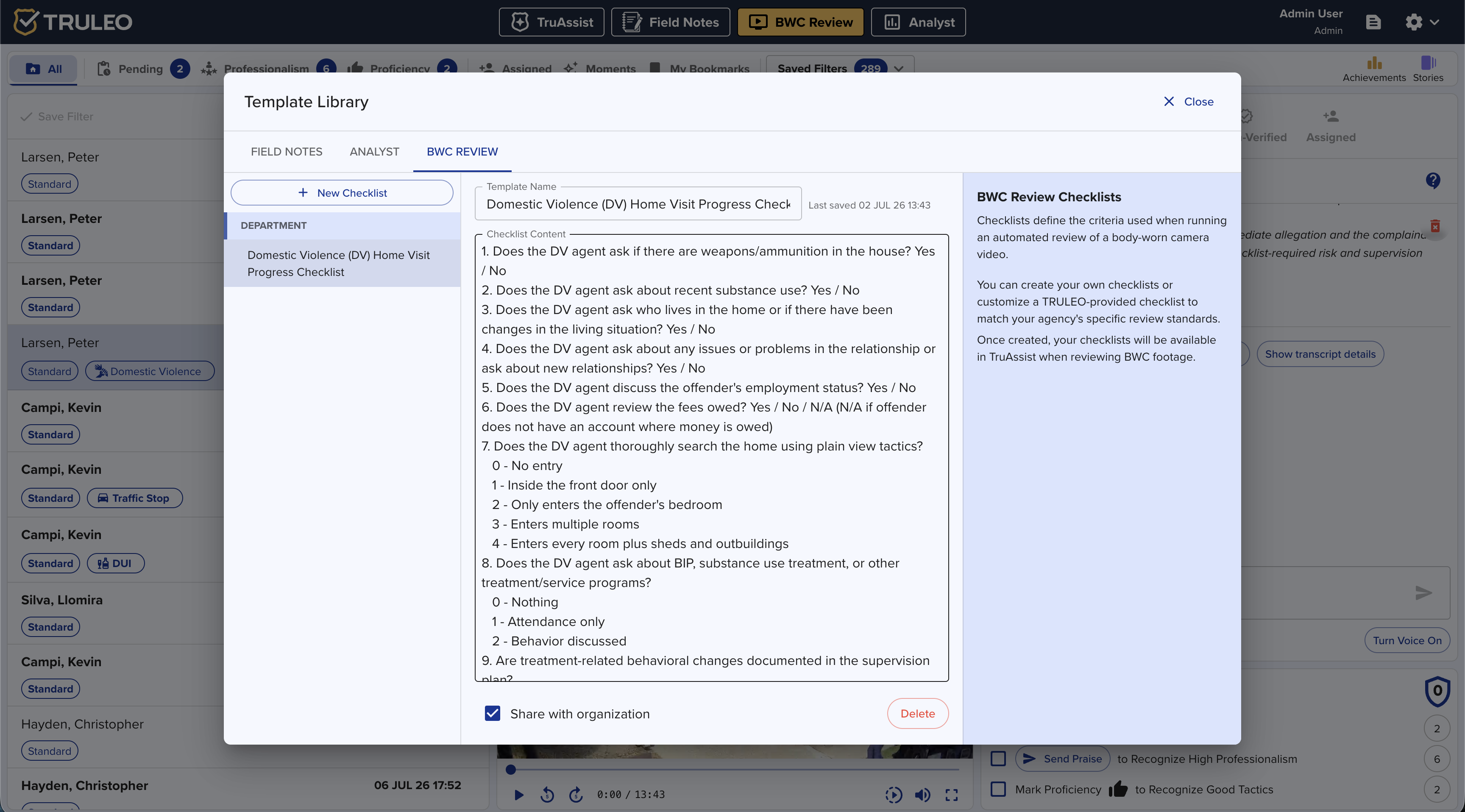
- Click New Checklist
- Enter a clear name (for example, "DV witness interview" or "Traffic stop coaching")
- Write the checklist content. Use
[Category]headers to group related items:
[Safety]Did the officer activate BWC before contact?
Did the officer position the vehicle safely?
[Communication]
Did the officer explain the reason for the stop?
Did the officer answer questions professionally?
[Coaching]
Strengths:
Improvements needed:
- Optionally check Share with organization so the checklist appears under DEPARTMENT for other reviewers
- Save
Customize a TRULEO checklist
- Open a checklist under TRULEO
- Click Customize Template to create an editable copy
- Adjust the name and content for your agency
- Share with the organization if it should become a department standard
- Save
TRULEO-managed checklists stay read-only. Always customize before editing.
Who can edit shared checklists
|
Checklist type |
Who can edit |
|---|---|
|
My checklist |
Owner |
|
Department (shared) |
Owner, and Admins |
|
TRULEO |
Nobody — customize to create an editable copy |
How checklists show up in TruAssist
After you save a checklist, reviewers with TruAssist Assessment see it when they open a video on BWC Review:
- Select a video
- Open the TruAssist tab (opens by default)
- Click a Run [checklist name] review follow-up, or ask TruAssist to run a review and pick from the checklist list
For the full review workflow — scorecards, evidence links, and saving results — see Use TruAssist to review BWC footage.
Best practices
- Keep department checklists short enough to finish in one coaching session
- Prefer yes/no or scaled items when you need consistent scoring across supervisors
- Reserve freeform lines for strengths and improvements
- Share one department default per common review type instead of many near-duplicates
- Name checklists the way supervisors already talk about them so follow-up buttons are obvious