![Asset 2.svg]](https://help.truleo.co/hubfs/Asset%202.svg)
What TruAssist can do
Records and intelligence search
- Search CAD and RMS for call history, person details, vehicle information, incident summaries, and officer notes
- Run OSINT lookups across 120+ databases — phone numbers, names, social media handles
- Query license plate reader (LPR) systems like Flock for plate lookups and location history
Policy and statute answers
- Ask about department policies, use-of-force guidelines, statutes, or arrest procedures
- Responses include clickable citations linking to the source document and page number. Citations to audio or video jump to the cited moment in the recording, and citations to a TRULEO report open a preview of that report.
Report generation
- Dictate or type a narrative; TruAssist identifies missing information and generates a complete report draft
- Reports saved from TruAssist conversations include a Citations section
BWC checklist review
- On the BWC Review page, TruAssist opens on the selected video and can grade the interaction against a department checklist
- Results include per-item scores, reasoning, and clickable transcript timestamps for coaching
- See Use TruAssist to review BWC footage
- If a result needs a correction, just tell TruAssist what to fix in the conversation — it re-evaluates only the affected items and carries forward everything else from the prior review, instead of starting the whole checklist over
Charts and relationship diagrams
-
Ask TruAssist to chart counts or trends from your data
-
Ask TruAssist to draw a relationship diagram of people, phones, locations, and associates in a case
-
For the step-by-step, see Create a link analysis diagram in TruAssist
-
People network graphs: Ask TruAssist how people are connected, for example the inmates and contacts on a person's jail calls. It draws an interactive graph right in the chat. Node color shows whether someone is the person you searched, an inmate, or a contact or visitor, and larger nodes have stronger connections to the people you searched. Hover a person for details, or hover a line to see the relationship and how many documents support it. Click Generate description on a line to have TruAssist describe the relationship, then it redraws the graph. Drag nodes to reposition them, and use the zoom in, zoom out, and reset controls.
Help with TRULEO itself
Ask "how do I..." questions about the TRULEO app. TruAssist searches the Help Center and links the articles it used inside its answer.
Wellness and crisis support
- Officers can ask for stress management, sleep guidance, or department wellness resources
- For acute personal crisis messages, TruAssist responds with a standard referral to your department's Employee Assistance Program (EAP) rather than continuing the conversation
- Informational wellness questions (sleep tips, stress management, VALOR materials) are answered from your agency's uploaded wellness documents
Follow-up suggestions
After each response, TruAssist surfaces categorized follow-up actions — quick-reply buttons and pre-filled forms. For vehicle lookups, a license plate form renders directly in the chat.
How to use TruAssist
- Open TruAssist from the top navigation
- Type or speak your question — about an address, person, vehicle, policy, or anything else
- TruAssist searches your connected systems and returns an answer with source citations
- Use the suggested follow-ups or ask a follow-up question to go deeper
Send and Stop are separate, filled circular buttons: Send is available while you're idle (disabled until you've typed something), and swaps to a Stop button while a reply is generating — you'll never see both at once. Click Stop to cancel an in-progress reply, or send another message while a reply is running — it queues and runs after the current turn finishes.
Saving a response to a case
Users with Analyst case access see two buttons on each completed response:
- Save as Report — adds the response to a case as a Report.
- Add to Case — adds the response to a case as an Evidence file. It appears in the Evidence tab on the case.
Both open the Add Content To… dialog. Give the content a name in the Report name field, search for one or more cases, and click the Add to… button. You can do this without leaving TruAssist.
You can also save any response as a file. Click Download and choose PDF (.pdf), Word (.docx), or Excel (.xlsx). In an Excel download, each table in the response gets its own sheet, and the rest of the text goes on the last sheet.
To turn a response into a presentation, click Download and choose **Create PowerPoint (.pptx)**. TruAssist sends the request for you as a new message, builds a simple presentation from the response, and replies with the .pptx file to download. Slides can include text, bullets, tables, and images from your files (an image takes up a whole slide). The deck has a plain layout, so open it in PowerPoint to polish it before you share it.
Managing conversations
TruAssist keeps multiple chats as tabs across the top of the window so you can work several threads at once (for example, one for a plate lookup and another for policy). Conversations are listed newest first by creation time, and each tab remembers its own conversation across page refreshes for the life of your session. Hover a tab to see a tooltip showing when that conversation expires.
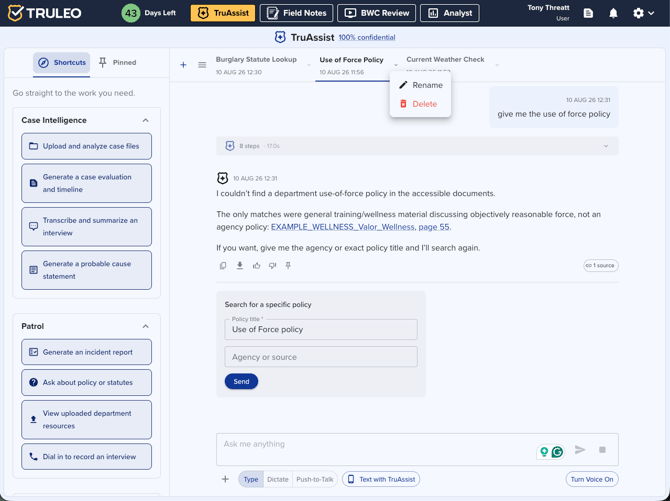
- Click Create chat to start a new conversation — it opens as a new tab titled New Chat until you rename it.
- Select a tab to switch conversations. Tabs scroll when you have many open. With more than one chat, use More to jump to any conversation from a list.
- On the active tab, click the title to rename it (tooltip: Rename conversation).
- The Create chat / New Chat control disables with a tooltip ("Start this chat before creating a new one") while the current conversation is still empty and unnamed, so you don't end up with a pile of blank chats. Send a message or let TruAssist auto-title the conversation, and the control re-enables. If you have no open conversations, click New Chat in the empty state to get started.
- Clear Conversation resets the current conversation in place — it removes the conversation but immediately opens a new, untitled one in the same tab. Clicking the X on a chat tab instead closes that tab entirely, switching you to a neighboring tab (or the empty state if it was your last one). Both actions now share the same confirmation dialog, which reads "Clear" throughout (title, body, and button) instead of the old "Delete" wording, and notes that TRULEO retains conversations for 12 hours and never trains on the data.
- * To delete every conversation at once, open the All Chats menu and click Clear all chats (the last item, below a divider). Confirm in the "Clear all chats?" dialog by clicking Clear all. TruAssist deletes all of your conversations and opens a new one.
- Status dots on tabs (and on More) show activity on chats you are not looking at: a warning-colored dot while a reply is Processing, and a primary-colored dot when a chat is Done processing until you open it.
Conversations are listed newest first by creation time. The active tab also shows when that chat was created.
Using TruAssist inside Analyst
TruAssist is also embedded on the Analyst case page. When used from within a case, TruAssist automatically includes your case files alongside your agency's policy and statute documents — so you can ask questions about the case and about policy in the same conversation. You can pin answers here just as you would on the main TruAssist page; pinned items appear in your main TruAssist Pinned list and stay synced across locations.
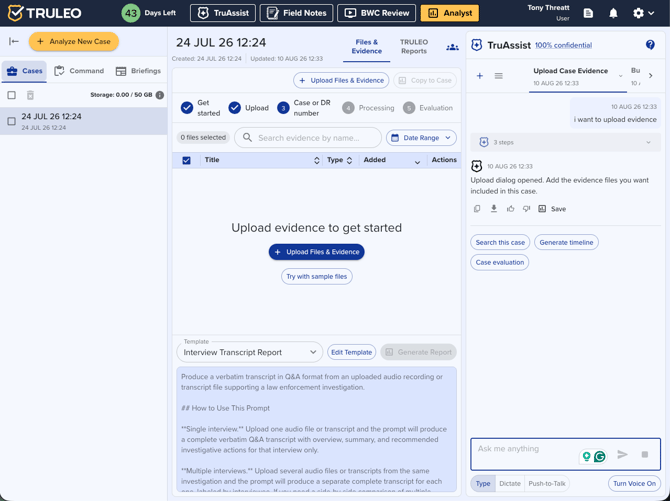
Using TruAssist inside BWC Review
TruAssist is embedded on the BWC Review page as a tab in the right-hand panel. Seeing this tab at all requires the assistant_bwc_review user permission (set per-user by an admin in User Management), in addition to your organization's TruAssist toggle being on — without it, you'll see the Transcript tab by default and the embedded assistant won't load. When you select a video, TruAssist loads that video's context and can:
- Answer questions about the interaction, summary, and related policy
- Run a checklist review against department or personal review checklists (requires TruAssist Assessment permission)
- Link evidence timestamps straight into the transcript and video
- Save the response with Save as Report or Add to Case into a Case, Command report, or Field Note
Open BWC Review → select a video → use the TruAssist tab. For the full workflow, see Use TruAssist to review BWC footage
Using TruAssist inside Field Notes
TruAssist is embedded on the Field Notes page as well, with the same case-file and policy context available while you draft a report. Answers you pin here also appear in your main TruAssist Pinned list.
Top Questions
A curated list of the most common TruAssist questions for your agency is available under Top Questions Asked in the settings dropdown (upper-right navigation). This opens the TRULEO Investigations Command Framework article on the help center.
Privacy and security
- FBI CJIS compliant with U.S.-hosted infrastructure
- Conversations are stored as part of your TRULEO session for review
- Wellness crisis messages receive fixed EAP referral responses without continuation
- If you return to a conversation that's since been deleted, TruAssist shows "This conversation no longer exists. Clear the conversation to start a new one." — click Clear to start fresh
- The confidentiality link in the TruAssist header reads "100% confidential. Never stored or trained on."
Best practices
- Be specific in your questions — include names, dates, or locations to get precise results
- Use citations to verify answers before acting on them
- The Supervisor Briefing follow-up option generates a command-level summary of the current case or scenario
- For personal crisis situations, TruAssist directs officers to EAP resources rather than providing counseling
- For BWC coaching, run a department-shared checklist first, then click evidence timestamps before you debrief
- The confidentiality link in the TruAssist header reads "100% confidential. Never stored or trained on."