![Asset 2.svg]](https://help.truleo.co/hubfs/Asset%202.svg)
Use a separate chat for each case or task
When one conversation mixes several cases, TruAssist can carry details from one into another. Keep them apart:
- Click Create chat to open a new tab for each case or task, for example one for a report and another for a plate lookup.
- Click the title on the active tab to rename it so you can find it again. For example, use the case number.
- Select a tab to switch conversations.
The Create chat control is disabled while your current conversation is still empty and unnamed. Send a message first, then create the next chat.
Switch between chats
Chats appear as tabs across the top, newest first. If you have more than one chat, open the All Chats menu to jump to any conversation from a list.
Small dots show activity on chats you aren't looking at, on tabs and on All Chats:
- A warning-colored dot means a reply is still processing.
- A primary-colored dot means a reply finished while you were elsewhere. It clears when you open that chat.
You can start a long request in one chat and work in another while it runs.
Add large records as files
Pasting a long record into the message box, such as a full CAD history, a long report, or pages of records, can slow replies and bury the details you care about. Add the record as a file instead:
- Open the chat for that case.
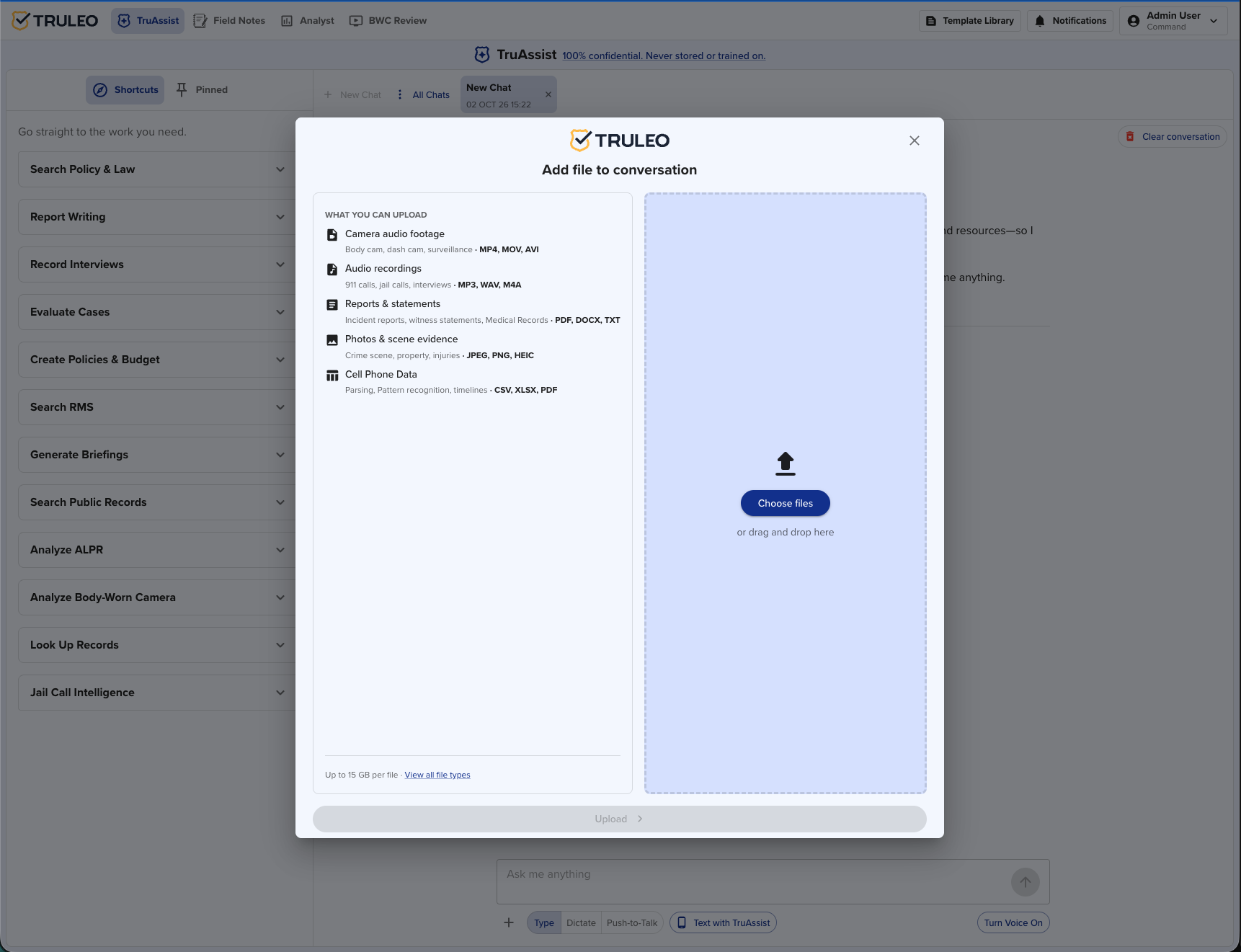
- Click the Add file button (the plus icon) below the message box.
- In the Add file to conversation dialog, select your file. You can add one file at a time.
- Ask your question about the file, for example: "Summarize the timeline in this record."
For a case you work on over many days, add the files to the case in Analyst. TruAssist includes your case files when you use it inside the case. See Using TruAssist inside Analyst.
Clear a conversation or all chats
- Clear conversation (top right of the chat) clears the current conversation and opens a new, untitled one in the same tab.
- The X on a tab closes that tab. It uses the same confirmation as Clear conversation.
- Clear all chats is the last item in the All Chats menu. Confirm in the Clear all chats? dialog by clicking Clear all. TruAssist deletes all of your conversations and opens a new one.
Clearing is permanent. Save anything you need first with Save as Report, Add to Case, or Download.
What the 12-hour note means
The confirmation dialogs say TRULEO saves conversations for 12 hours so you can access them during your shift. After that, a conversation expires and you can't reopen it. Hover a tab to see when that chat expires. TRULEO never stores or trains on your data.
If you open a chat that has expired, TruAssist shows "This conversation no longer exists. Clear the conversation to start a new one." Click Clear to start fresh.
Best practices
- Start a new chat when you switch to a different case, even if it's about the same person.
- Name each chat so you can find it later.
- Add large records as files instead of pasting them.
- Save reports and key answers to a case before the 12-hour window ends.
- Clear chats you no longer need.